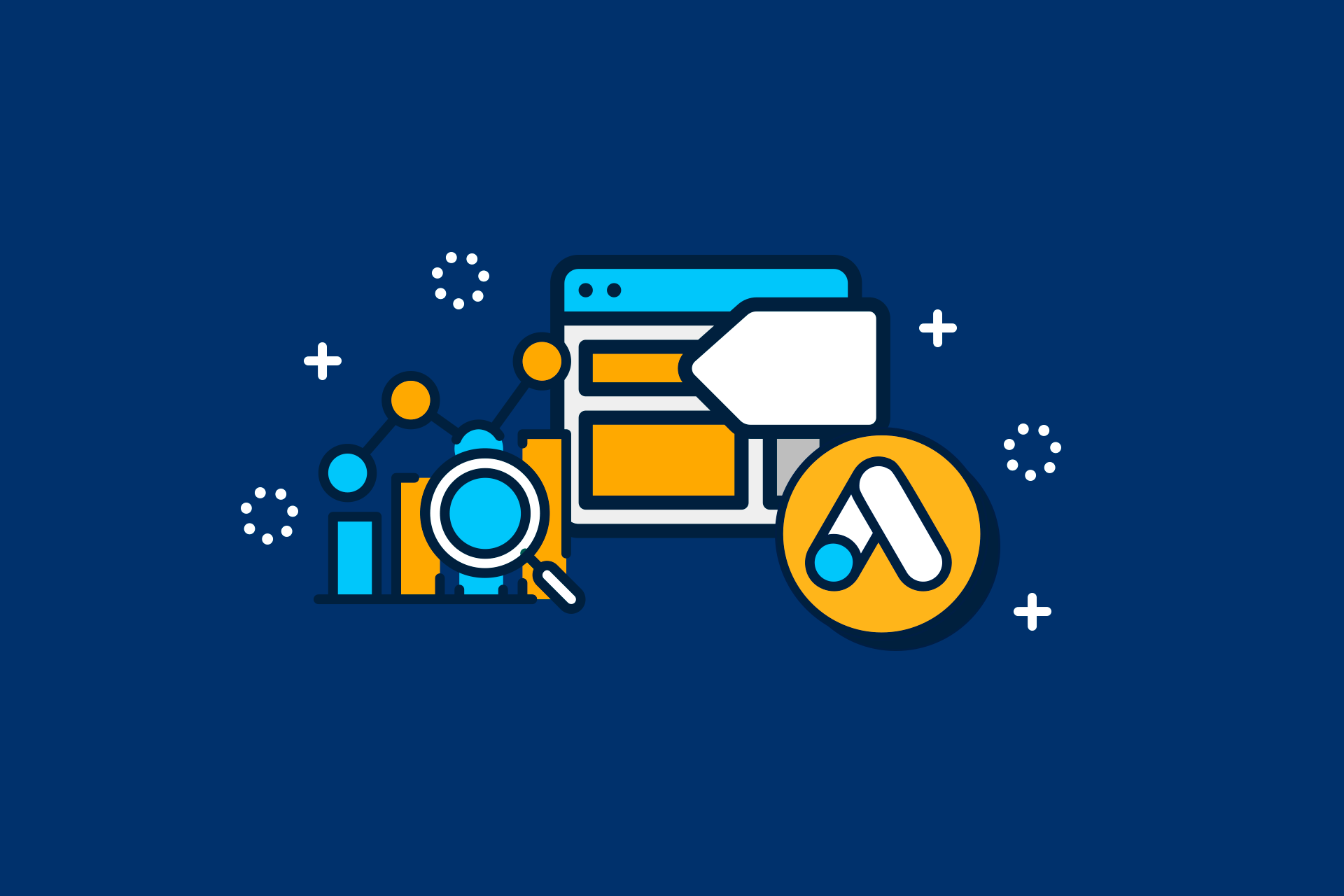
When it comes to promoting an event, Google’s tools can be free and offer great marketing solutions for organizers.
With them, you can track website visit data, add banners, and even create ads if you want to invest more money in it.
In this article, I’ll explain everything you need to know to reach these goals. Learn about:
- Tag Manager
- Google Ads
- Analytics
And find out how to set up Google’s tools on your event website.
Google Tag Manager: what is it?
First, you need to get to know Google Tag Manager (GTM). It’s one of Google’s most important tools.
Despite the intimidating name, Google Tag Manager is actually a huge time-saver!
That’s because it lets anyone set up advanced actions on a website without having to manually touch code. This is done through tags.
Basically, “tags” are snippets of code that send data to a system and tell it what to do.
In other words, Google Tag Manager (GTM) gives you the autonomy to create and manage tags faster and more easily.
For example, imagine you want to add a banner promoting ticket sales on every page of your site.
Without GTM, you’d need to manually edit your site’s code.
But Tag Manager makes this process much simpler! Just create a tag for the banner and define where it should appear.
Pretty cool, right? And the best part is that’s not the only thing this tool can do!
How is Google Tag Manager used?
Remember how I mentioned that Tag Manager is so important to Google’s ecosystem?
That’s because it works together with other Google tools and makes them even better!
That’s exactly what happens with Analytics and ads.
Tracking visit data: Tag Manager + Analytics
Tracking your buyers’ data is essential for promoting events.
After all, this information helps you figure out who you’re communicating with, how they found your site, what they buy there, and more.
That’s why Google developed Google Analytics, a tool that collects all the data on visits and behavior on your website.
Imagine having to track all of that manually. It would be incredibly complicated!
So Google makes tracking even easier by showing all of this data in one place.
Since there’s so much information, you can create tags to track specific actions.
For example, you can create a tracker to see how many people visited your event’s shopping cart page. That’s where Google Tag Manager comes in!
It’s where you’ll create that tracker and connect it to Google Analytics.
This way, you’ll be able to view that specific data point right in your Analytics dashboard and take the tool to the next level with Tag Manager’s help.
Creating advanced ads: Tag Manager + Google Ads
Another well-known use for Tag Manager is creating tags to improve ads on Google Ads.
You can run ad campaigns without it. But you’ll need Tag Manager’s tags if you want to build more specific campaigns.
For example, in Google Tag Manager you can create a tag to send ads to everyone who visited a specific page on your event’s website.
In practice, this is widely used to target people who visited the checkout page but didn’t complete the purchase, or who visited your site multiple times without buying anything.
This way, tags make Google Ads more powerful and expand the options available to advertisers.
Adding banners, running tests, and more
As you’ve seen, Tag Manager works in tandem with other Google tools.
But not only those! Other apps also offer interesting features when combined with Tag Manager.
For example, some tools let you create banners, pop-ups, and buttons for your site.
All you have to do is use that platform to create the item you want to add to your site, copy its code, and turn it into a tag in Tag Manager. Easy, right?
This way, you can make changes across different pages, run tests, and analyze data easily, all without manually touching your site’s code!
Google Ads: what is it?
As mentioned earlier, Google has a dedicated tool for creating paid ads.
Google Ads is Google’s advertising platform, which lets you create ads across the company’s various products, such as Search and YouTube.
But it has a key advantage: the ability to create ads targeted specifically at your audience.
This makes it possible to reach potential attendees with videos on YouTube or banners on any website on the internet, helping your event become a familiar name to them.
Since there are so many ad format options on Google, the platform has become one of the most important channels for paid event promotion.
How does Google Ads work?
There are 4 main ad formats on Google Ads.
Let’s look at the most common ones:
1. Search Network
- Ads appear in Google’s search results for specific keywords;
- Simple to create, with no need for photos or videos, just keyword selection;
- Ideal for boosting sales and reaching new audiences searching for specific solutions;
- You only pay when someone clicks the ad.
2. Display Network
- Image-based ads shown on websites, blogs, and news pages;
- Reaches up to 90% of internet users worldwide, ideal for remarketing with Google Tag Manager;
- Keeps your event top of mind for attendees, encouraging registrations and building brand recognition;
- Supports banners, text, graphics, videos, Gmail ads, and in-app ads.
3. YouTube Ads
- Video ads shown before YouTube videos, targeted to a specific audience;
- Massive reach thanks to YouTube’s huge user base;
- You only pay when there’s interaction with the campaign; no cost if the viewer skips the video.
4. App Ads
- Focused on promoting apps in app stores;
- Not directly related to events, but useful if you have a dedicated app for your event;
- Makes it easier for people to find and use your event’s app.
Google Analytics: what is it?
Google Analytics is a free Google tool that helps you understand how people interact with your website.
Basically, you can think of it as a thermometer.
That’s because it tracks success metrics, such as the number of visits to your event’s website, where they come from, and what visitors do while they’re there.
This way, you can use it to get to know your audience better and gain valuable insights from analyzing visitor behavior.
How does Google Analytics work?
Google Analytics works by collecting data on your website’s visitors. It shows information such as:
- Number of visitors;
- Time spent on the site;
- Most visited pages;
- Which channels brought visitors to your site, such as a Google search or a link on social media.
It also lets you track specific goals through Tag Manager’s tags.
For example, you can create tags to track how many people registered for an event or bought a product.
With this data, you can understand what’s working well and what needs improvement.
This gives you more valuable insight to develop strategies and reach your goals.
How to set up Google’s tools on your event website?
Now that you know how Google’s tools work, it’s time to set them up on your event’s website.
First, it’s important to know that all the data collected is only shown inside Google’s own tools.
For example, if you want to see detailed visitor data for your site, you need to use Google Analytics.
You won’t be able to see that information on your event website or in your event platform of choice.
Some platforms, like Even3, may even offer their own data dashboards, such as Even3 Analytics. But they don’t have the same functionality as Google’s tools.
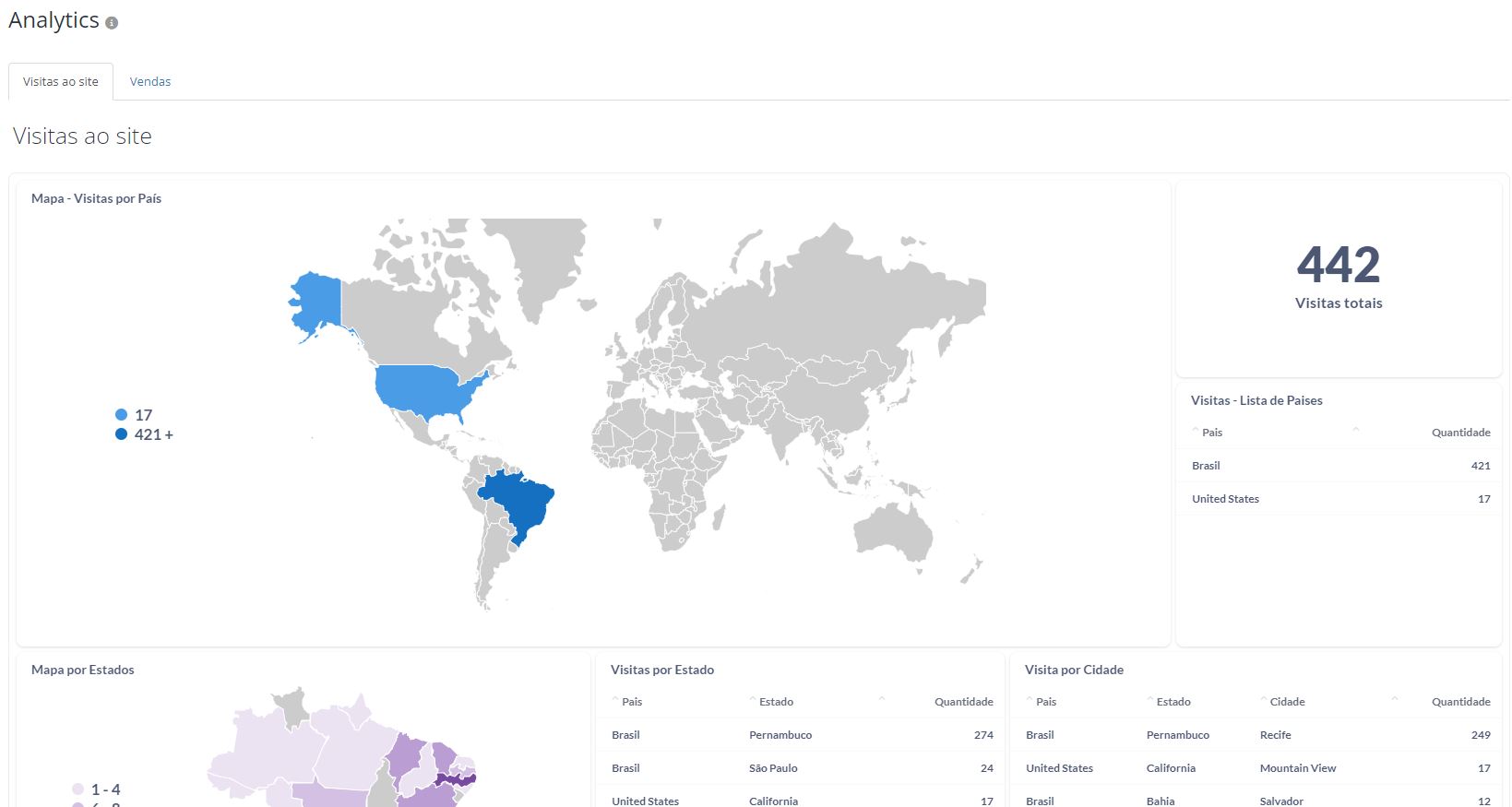
Example of Even3 Analytics on the platform
That said, to view Google’s data, you need to activate the tools on your website.
Here’s how, step by step:
How to install Google Analytics on your event website
Basically, you’ll need to install a tracking code on your event’s website to collect visitor data.
This tracker is provided by Analytics itself and needs to be installed in your event site’s code.
But don’t worry if you don’t know how to do this manually!
Event platforms like Even3 already have tools that make this process much simpler.
For example, on Even3, you just need to copy the code provided by Analytics and paste it into the “Tracking pixel” area in your event settings.
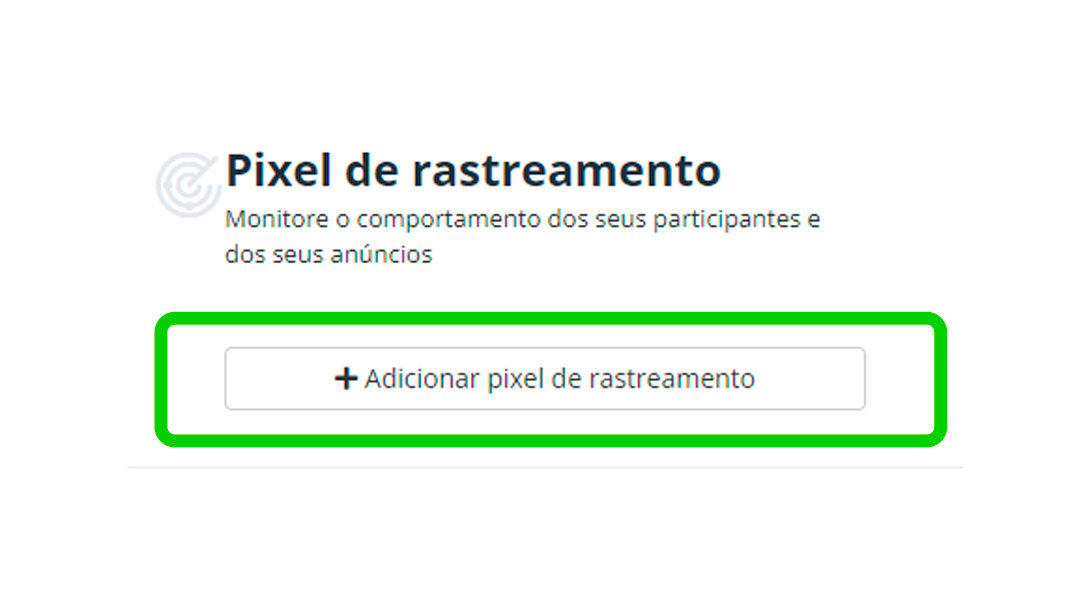
Even3’s tracking pixel area
How to install Google Tag Manager on your event website
Similarly, you’ll also need codes to make Google Tag Manager work on your site.
GTM provides two codes that must be manually inserted in the <head> and <body> of your event’s website.
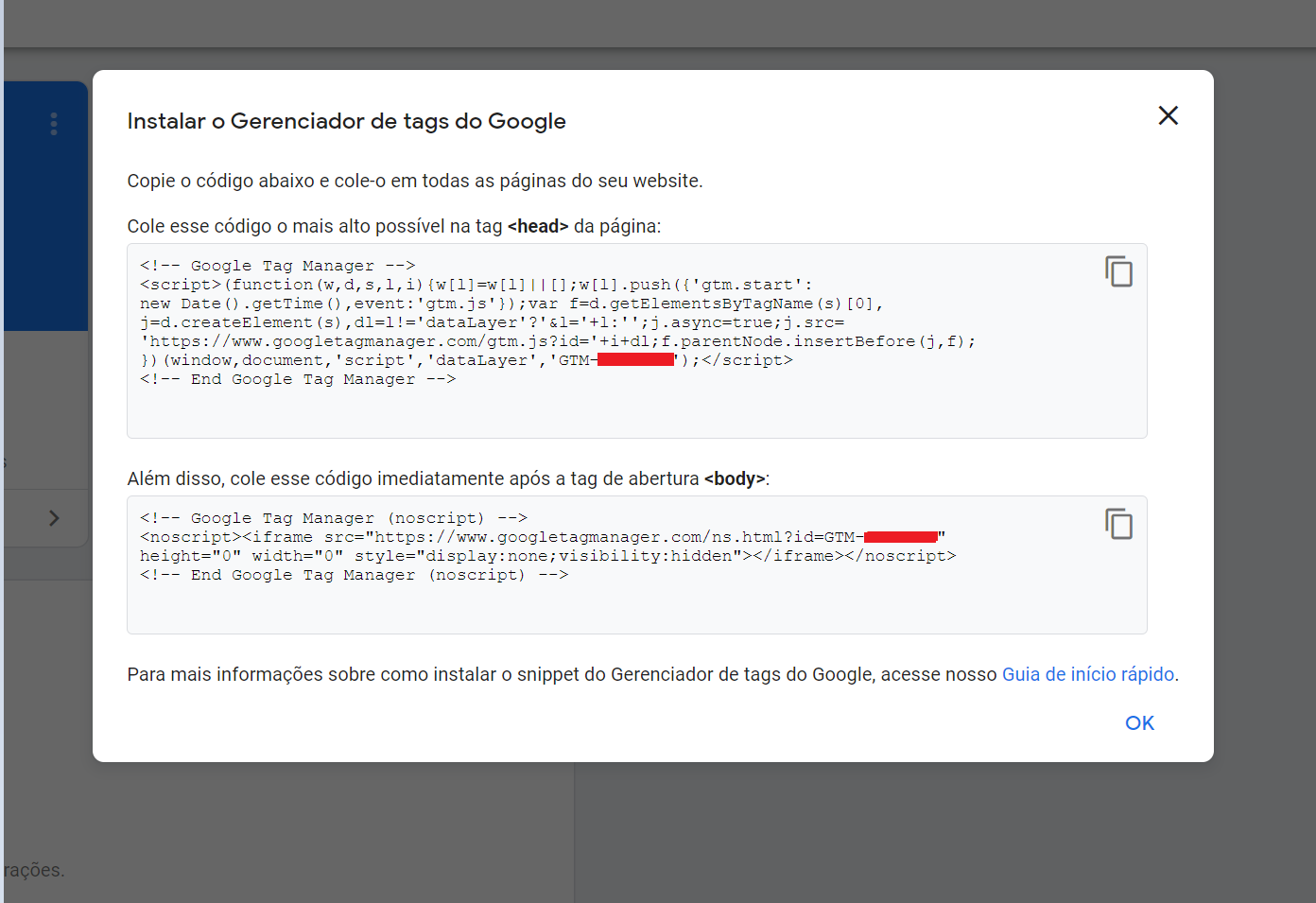
Google Tag Manager installation codes
Never heard these terms before? That just means you’ll need to manually edit some code to get the tool up and running.
Trust me, without it, everything would be even more complicated!
That’s why it’s worth having the support of an events platform for this part too.
For example, on Even3, the platform’s own support team inserts the code into your event website for you. So you don’t have to worry about a thing!
Just send over the codes and they’ll be set up on your site. Much easier, right?
This support is offered free of charge by Even3 to any organizer using the platform.
This way, you can take advantage of free tools to run marketing campaigns with more autonomy, greater productivity, and lower IT costs.
How about getting started? Create a website for your event for free and start using Google’s tools.
Grow Your Event with Even3
Google’s tools are powerful allies for promoting your event, but running a successful event takes more than marketing data.
With a complete events platform like Even3, you can:
- Create your event’s website;
- Sell tickets;
- Manage attendee data;
- Issue certificates;
- Boost your marketing campaigns, and much more.