It’s time to create the visual elements for your event, and you want practicality and free tools? Then let me introduce you to Canva!
It’s a free online tool that turns creating visuals into something simple and practical.
With it, you can make a logo, event covers, flyers, social media posts, and much more.
You don’t even need to be a professional designer!
But be careful! To create attractive, informative graphics, it’s important to pay attention to a few basic design rules.
That’s why I’m going to teach you everything you need to know about:
- What is Canva?
- 5 basic design principles to use in Canva
- How to use Canva for events?
- Logo
- Website cover
- Badge
- Flyer
- Social media posts
What Is Canva?
As I mentioned, Canva is a free digital design platform.
Its goal is to make design accessible, practical, and fast for anyone, even people who aren’t design professionals.
That’s why Canva offers dozens of ready-made, customizable templates for different types of event graphics.
There, you can create website banners in the right size, social media posts, logos, and much more.
On top of that, it’s super intuitive and easy to use, which makes the whole creation process much faster.
Even though it’s a fairly basic tool, I’ll show you how to get the most out of Canva to create amazing graphics.
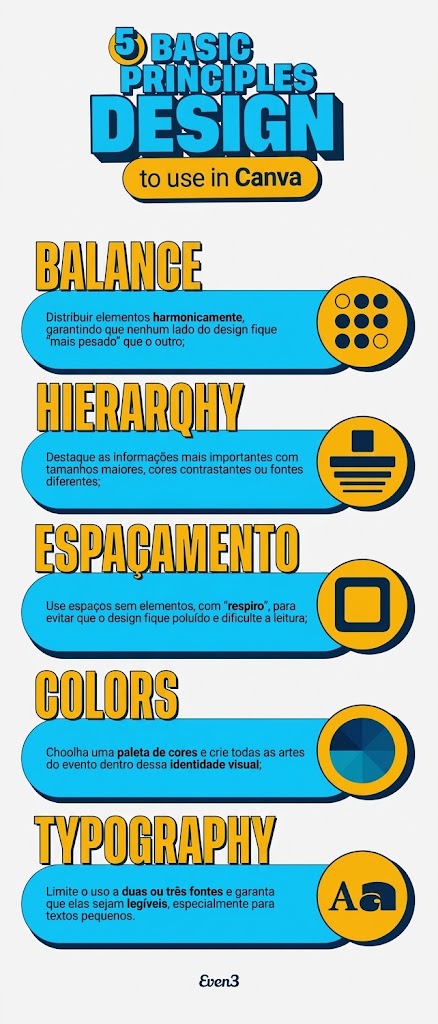
5 Basic Design Principles to Use in Canva
Before you start creating your graphics, it helps to follow a few basic design principles for a more professional result. Here are five of them:
Color in Design: How to Use It the Right Way?
Speaking of colors, this is a point you should pay close attention to!
That’s because color grabs attention, conveys emotion, highlights information, and shapes your visual identity.
So, to choose the right colors in Canva, consider:
- Color palette: Choose colors that represent your event’s theme. For example, pastel tones for kids’ events or vibrant colors for festivals.
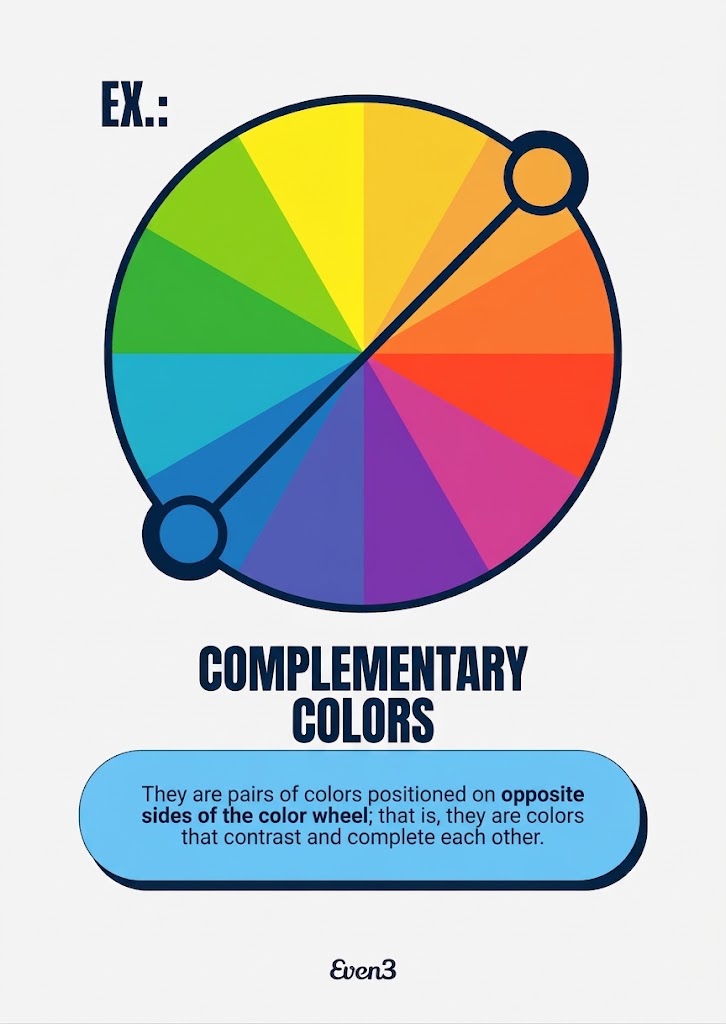
- Complementary colors: Combine opposite colors on the color wheel. The color wheel is a visual representation of colors in sequence, showing how they relate to each other. For example, purple and yellow sit on opposite sides of the wheel, so they create contrast and grab attention.
- Contrast for readability: Make sure your text is legible. Use combinations like a dark background with white text, or a light background with black text.
Following these principles, your Canva creations will be more impactful and effective!
How to Use Canva for Events?
Now it’s time to get to work!
Using Canva for events will save you both time and money.
So use it to streamline the creation of your event’s graphic materials.
Of course, it won’t replace a professional designer, especially for a large workload, but it can support events that don’t require heavy production.
If needed, you can put together a communications team to split the tasks.
Canva lets you share your designs with your team for joint, real-time editing.
How to Make a Logo in Canva
1. Access the templates:
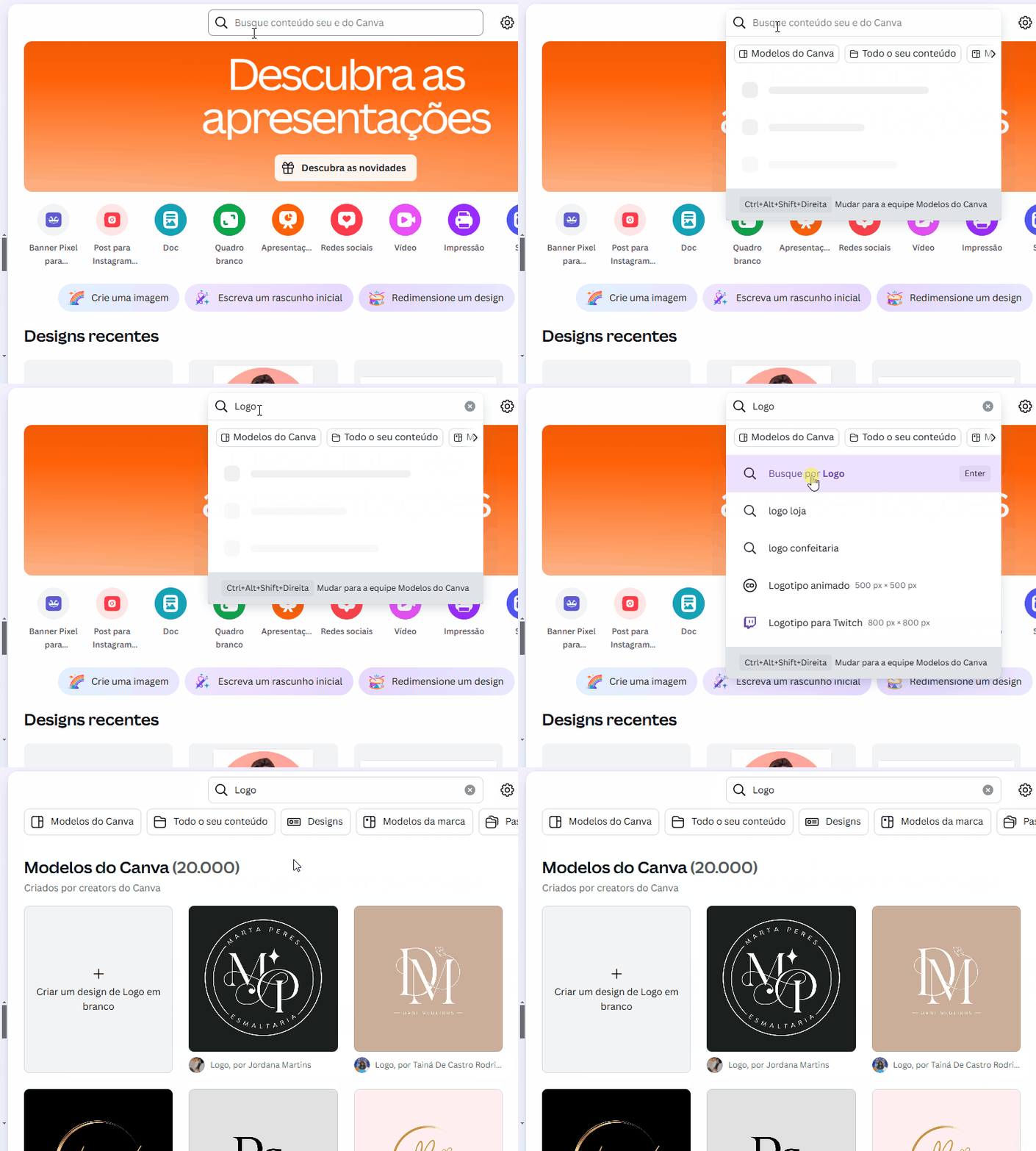
Create a Canva login and open the tool.
Then you’ll have access to ready-made logo templates. Just search for “logo” in the search bar.
But be careful not to end up with a logo that looks just like everyone else’s.
2. Customize the design to make it your own:
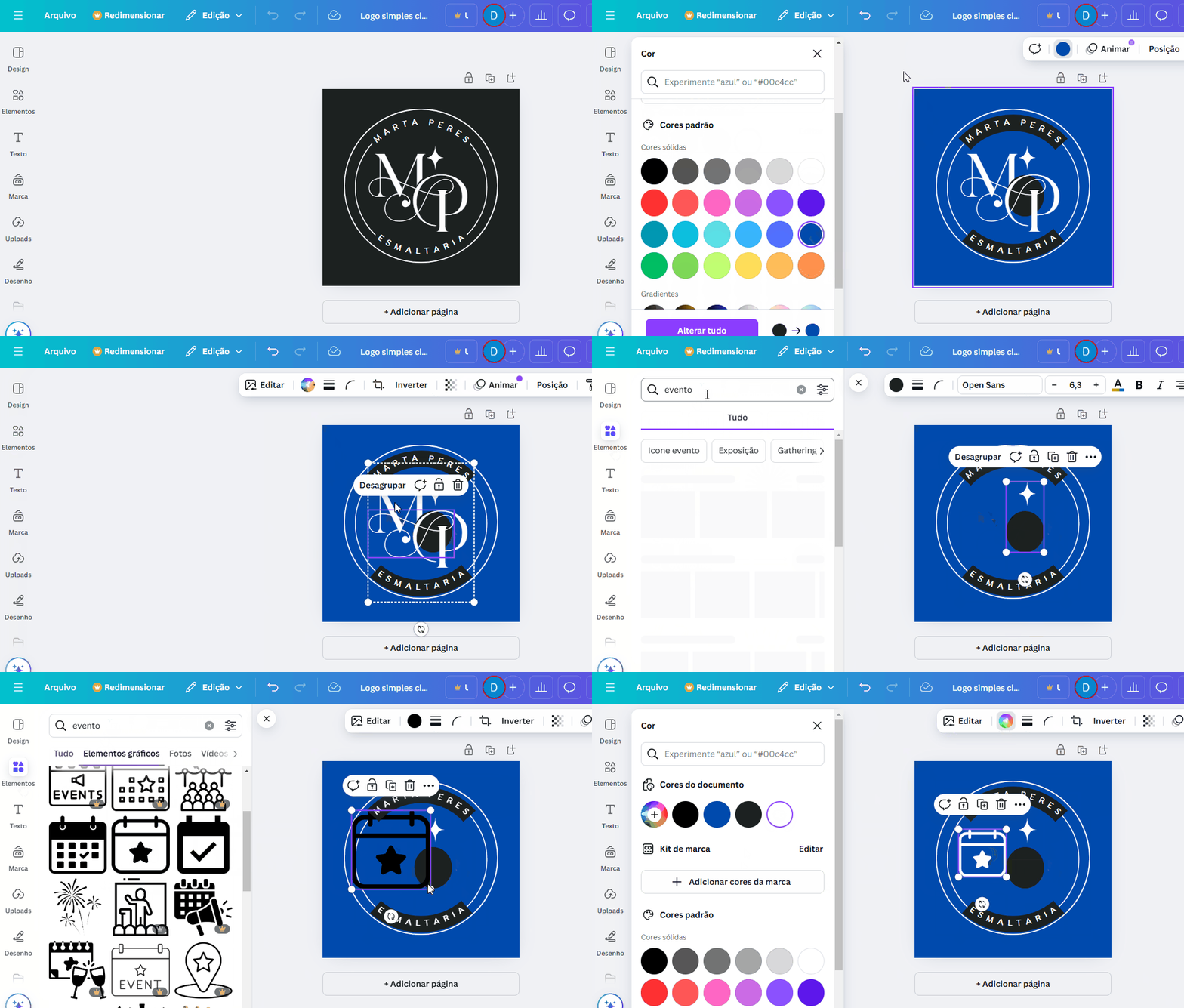
- Replace the text with your event’s name;
- Change the colors and fonts. These will define your event’s visual identity and should be used across your other graphics too;
- Add icons or illustrations related to the theme by searching Canva’s “Elements” tab.
3. Save and download:
- Click “Share” > “Download”.
- Choose the PNG format for higher quality. If needed, turn on the transparent background (a Pro feature) or use another tool to remove the white background.
For logos, it can be worth having a version with a transparent background.
While that feature is paid in Canva, other tools can remove the white background for free, such as Adobe Express.
Canva also offers a paid plan that’s quite useful for brands: the Brand Kit.
This tool stores your event’s colors, fonts, and logos, automatically adding them to any design created from that account.
This way, your production can be even faster and more consistent, especially if you have different people creating graphic materials.
How to Make Your Event Website Banner in Canva
Banners are essential for your event page. They can vary in size, but on Even3 they’re 1100px by 440px.
To create them directly in Canva:
1. Click “+ Create a design”;
2. Choose custom size and enter the values in pixels;
3. Edit the template and add information:
- Add the title and the event’s key information, like date and location.
- Use images or graphics that represent the theme. You can find them in Canva’s “Elements” tab or upload your own images;
- Use contrasting colors that make the text easy to read;
- If needed, add sponsor and supporter logos.
4. Download the banner:
- Click “Share” and save it as JPG or PNG to add to your event’s website.
As mentioned, remember to use similar fonts and colors across all of your event’s graphics. This creates consistency in your brand and makes it easier for attendees to recognize you!
How to Make a Badge in Canva
1. Choose the format:
In Canva, you can search for any type of format.
Type “Badge” into the search bar. Choose the template you want, or start a custom design.
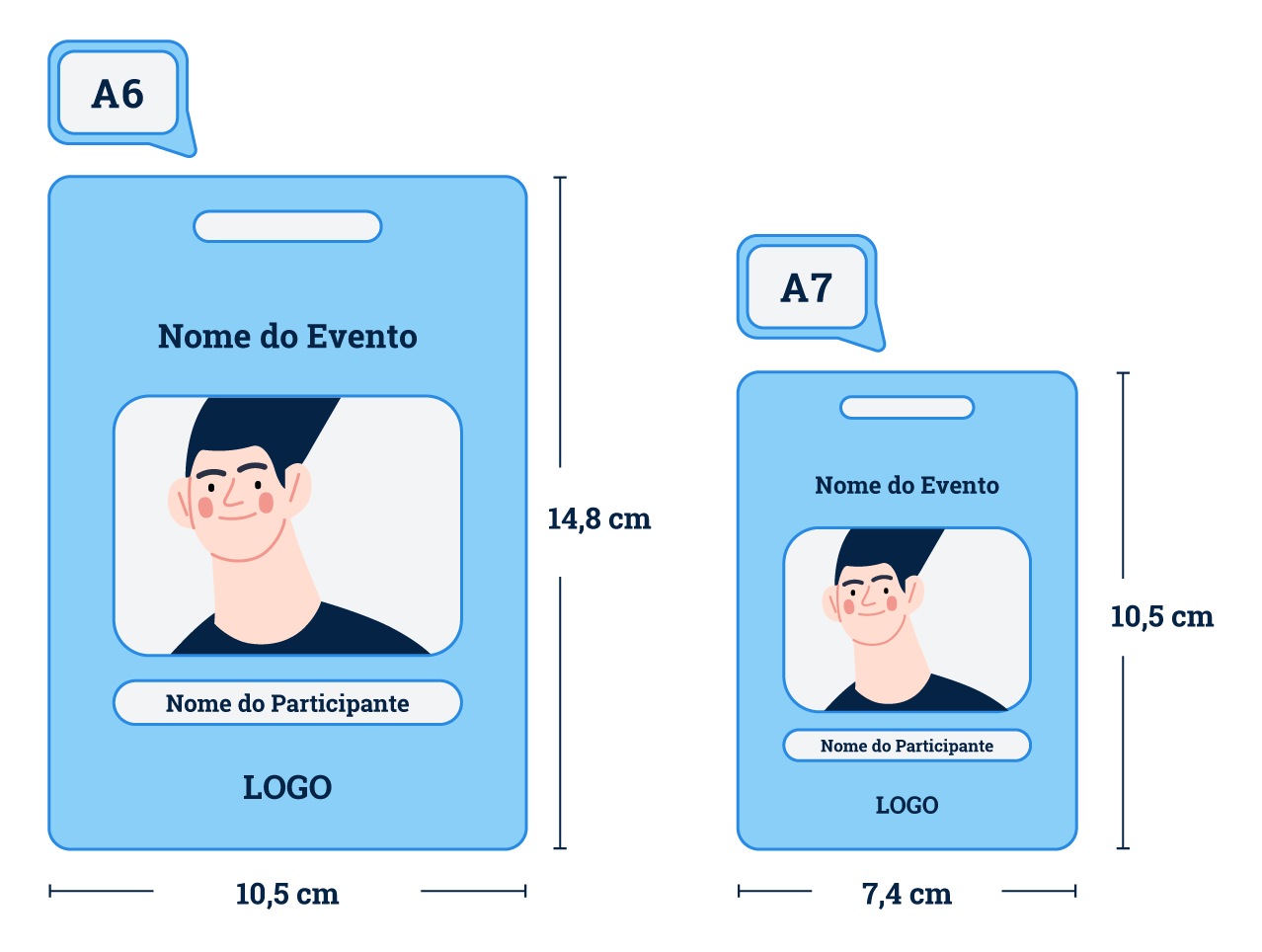
Just make sure the badge’s size is correct. If you prefer, you can start a design with a custom size.
Badges usually follow the international standard sizes of A6 (5.8 in x 4.1 in) or A7 (4.1 in x 2.9 in).
2. Customize the layout:
- Add the event logo and your visual identity’s colors;
- Differentiate by category: use different colors or icons for attendees, speakers, and organizers;
- Add blank fields to be filled in with the event badge label or other relevant information.
Badges should have a fairly generic structure, since filling out each one individually would take a lot of time.
That’s why you should design it to be personalized for each attendee.
You can also use an event platform like Even3 to automatically generate identification labels with each attendee’s name and check-in QR code, which can then be printed in bulk and attached to the badges on event day.
3. Print or share:
Click “Share” to send the layout, or download it in high-quality PDF for printing.
How to Make a Flyer in Canva
Now let’s talk about print materials — you can also create your flyer in Canva.
It can be used both for promotion and to inform attendees on the day of the event.
1. Search for “Flyer”:
In Canva, search for the term “Flyer” and pick a template. Flyers usually use A5 size (8.3 in x 5.8 in).
2. Adapt the content:
- Add the title and the event’s key information;
- Click “Text” to add text boxes with more information. But write clearly and concisely: avoid too much text and small fonts, and always prioritize legible fonts with colors that contrast against the background;
- Add a QR code via “Uploads” to direct attendees to your event’s website, if needed. Canva itself offers a free QR code generator.
3. Adjust the design:
- Adjust the elements to match your event’s color palette;
- Add images or visual elements to highlight the main information.
4. Download or send to print:
Export the file as PDF for printing or JPG for digital use.
How to Make Social Media Posts in Canva
- Choose the format and social network:
Under “Templates,” you’ll find options for posts, Instagram stories, YouTube thumbnails, and much more.
- Add relevant content:
Designs made in Canva can end up looking generic, but not if you actually create valuable content.
- Use short, punchy text. Communicate directly and in an eye-catching way;
- Remember to include a call to action, like sharing the post or registering for the event;
- Use background images or illustrations related to the theme to make the text stand out;
- Add your event’s official logo.
- Use animations:
Video content is boosting reach on social media even more, and Canva offers plenty of animation options.
So take advantage of these features to make your posts more engaging.
- Publish:
Download in the ideal format for each platform (JPG, PNG, or video for animations), or use the direct publishing option to post straight to social media.
To create even more professional designs, you can use free Canva elements. For example:
Create Shadows in Canva
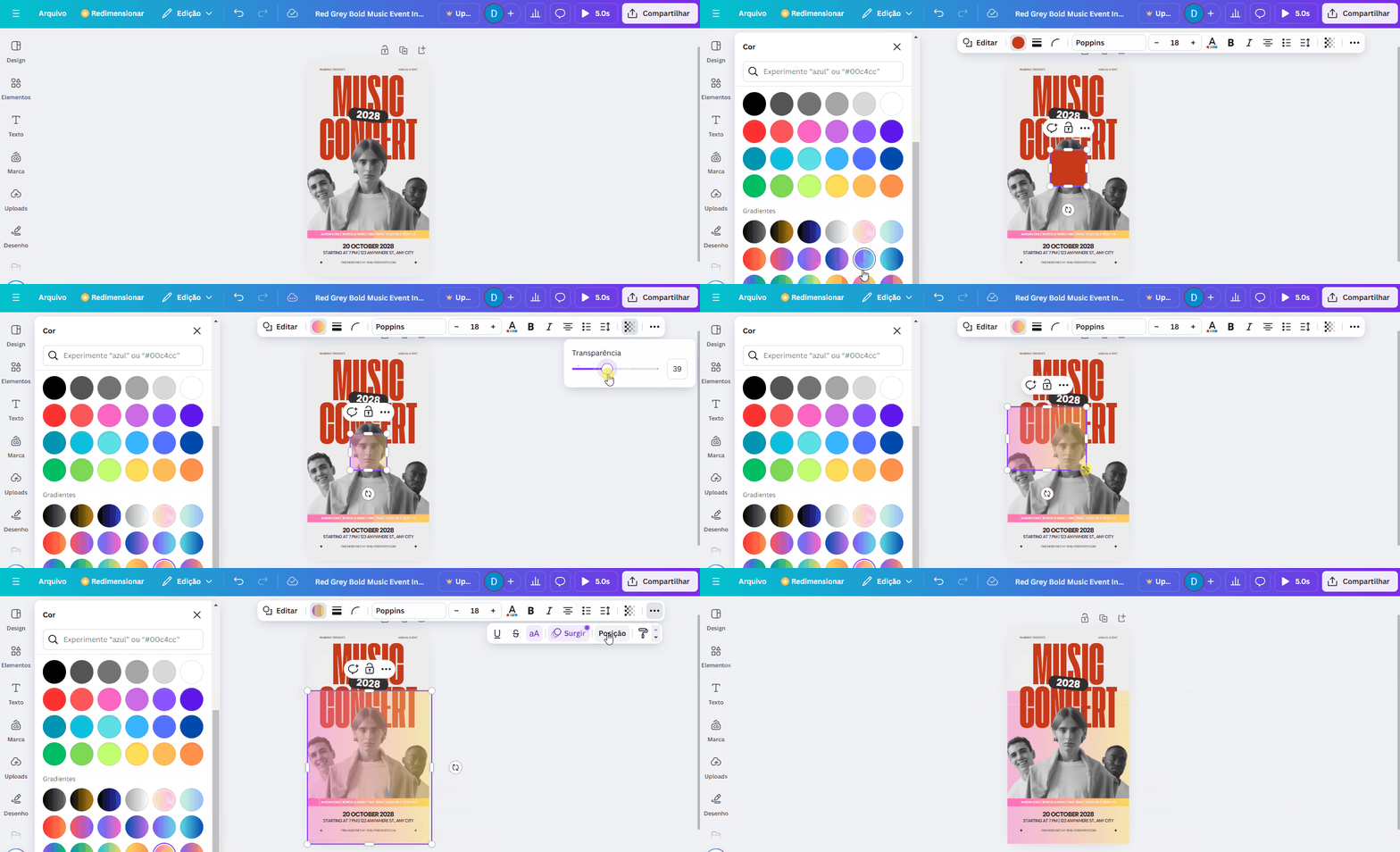
Press the “R” key on your keyboard to create a color shape.
Change the shape’s color to a gradient of your choice, then lower the gradient’s opacity.
Your shadow is ready! You can place it behind text to boost contrast and readability, or along the edges of an image to highlight the central information.
Use Light Leaks in Canva for Events
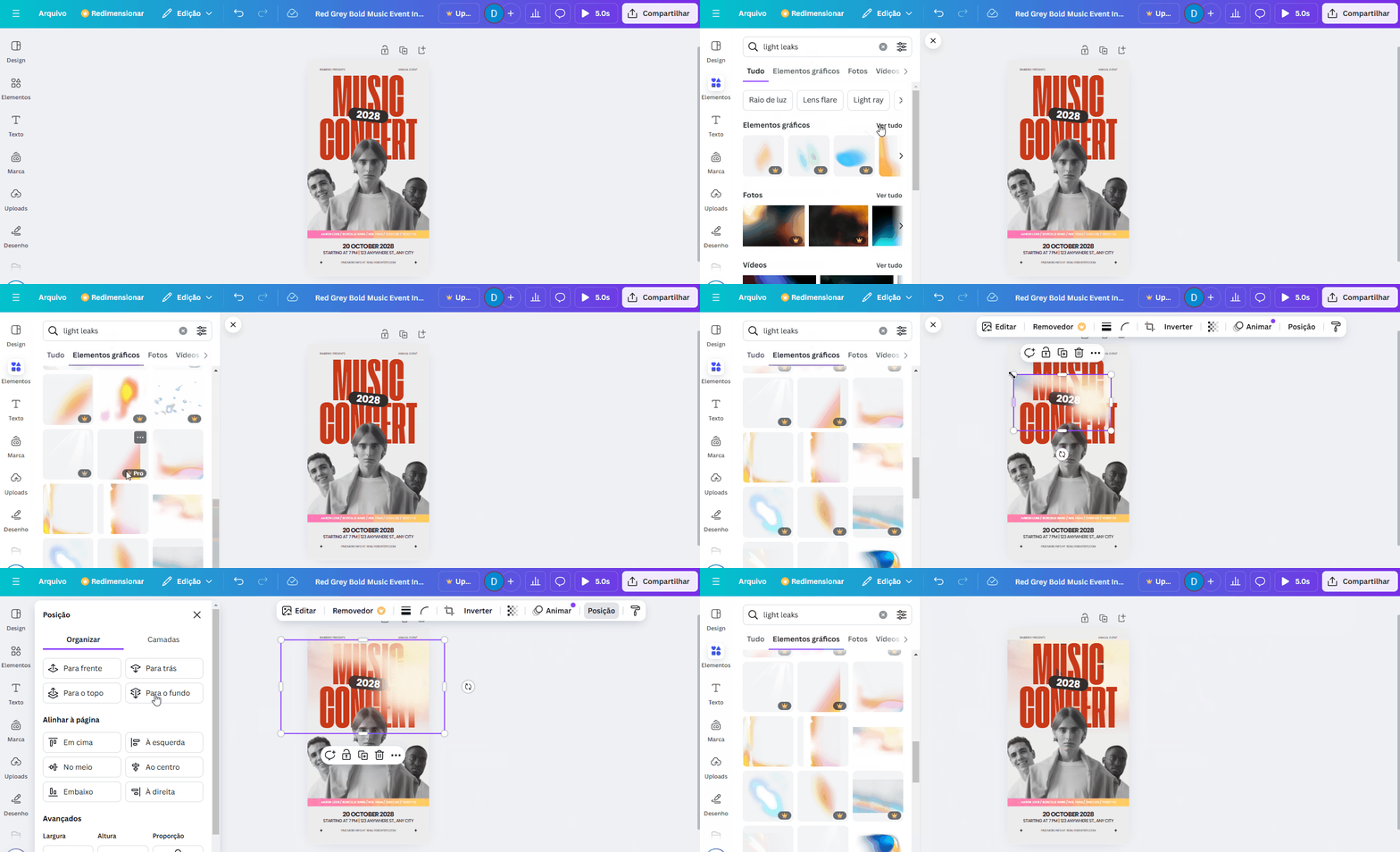
In the Elements tab, search for “Light Leaks.”
These can also be used behind text or images, or along the edges of your design, to highlight information.
How to Promote Your Event?
Now that your graphics are ready, it’s time to promote your event by email, on social media, and through paid ads.
This will help you reach new attendees and boost engagement among people who have already registered.
So plan a strategic campaign. Use the graphics you created in Canva and invest in regular social media posts, interactive stories, and eye-catching emails.
A consistent promotion plan is essential to get the best results from all of this effort.
Boost Your Promotion with Even3
Great graphics are only half the job — you also need the right platform to turn that attention into registrations and a smooth event experience.
With a complete events platform like Even3, you can:
- Create your event’s website using the same visual identity you built in Canva;
- Sell tickets and manage registrations;
- Generate certificates automatically;
- Run check-in with QR code badges;
- Boost your marketing campaigns and reach even more attendees.