The online conference is gaining more and more ground, and because of that, many organizers are choosing this kind of event.
How an online conference works
In this event format, speakers record their talks ahead of time and send them to the event organization, who then stream that content to attendees on the day of the event.
On the day of the online conference, the speaker joins live to answer listeners’ questions.
Usually, this Q&A moment happens as a panel discussion, at the end of a block of talks, with all the speakers from that block and a moderator assigned by the event.
During that panel discussion’s stream, the moderator, who has already collected questions submitted by the audience during the broadcast, leads a very productive and enriching conversation for the event.
How to record your talk
Some people still find “video” a tricky subject. Especially when it comes to choosing a program to record and edit videos.
But this process doesn’t need to be seen as an impossible task.
There are several tools and programs for recording your online talks. Some of them are even free.
In this article, we’ll cover using Loom, a screen and camera recording tool.
What is Loom and how can it help with your online conference
If you thought you needed a super professional setup to record your own talks, you’re mistaken.
You can record and edit your talks with tools available online. One of them is Loom. This tool lets you record your presentation in PowerPoint, Keynote, or Google Slides.
Loom offers a free plan and a paid one. The most interesting part is that they offer the paid plan for free to university teachers and students. What a great initiative!
One thing I really like about Loom is that you can record your screen at the same time you record yourself presenting it. This is really useful, since attendees can see the person instead of just viewing the slides.
For that, we recommend using the Desktop app, since it lets you record your presentation together with the camera.
Installing Loom
The first step is downloading the app, which you can do at the link below.
-> Download the Loom app
Once on the site, just click “Get Loom For Free”
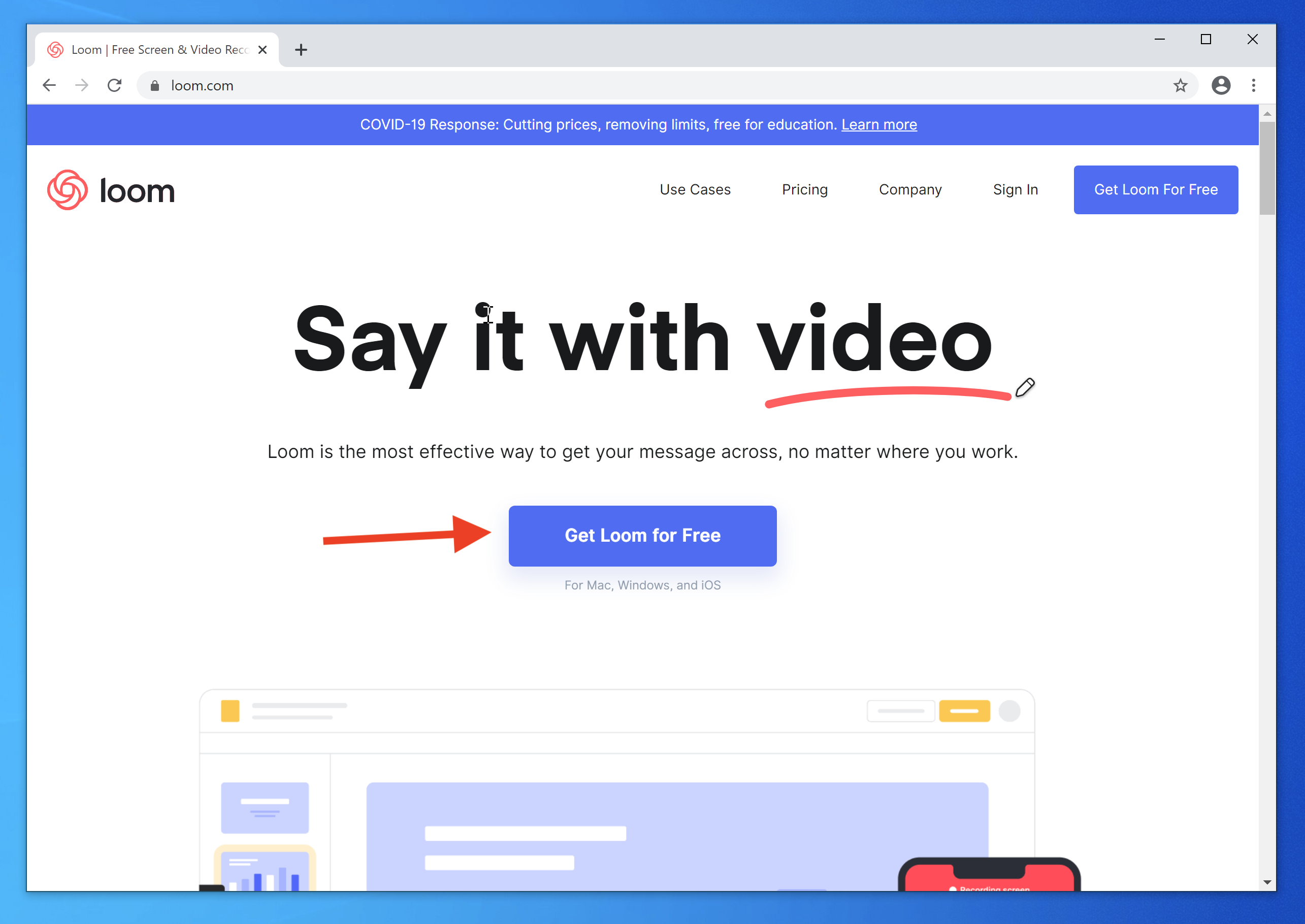
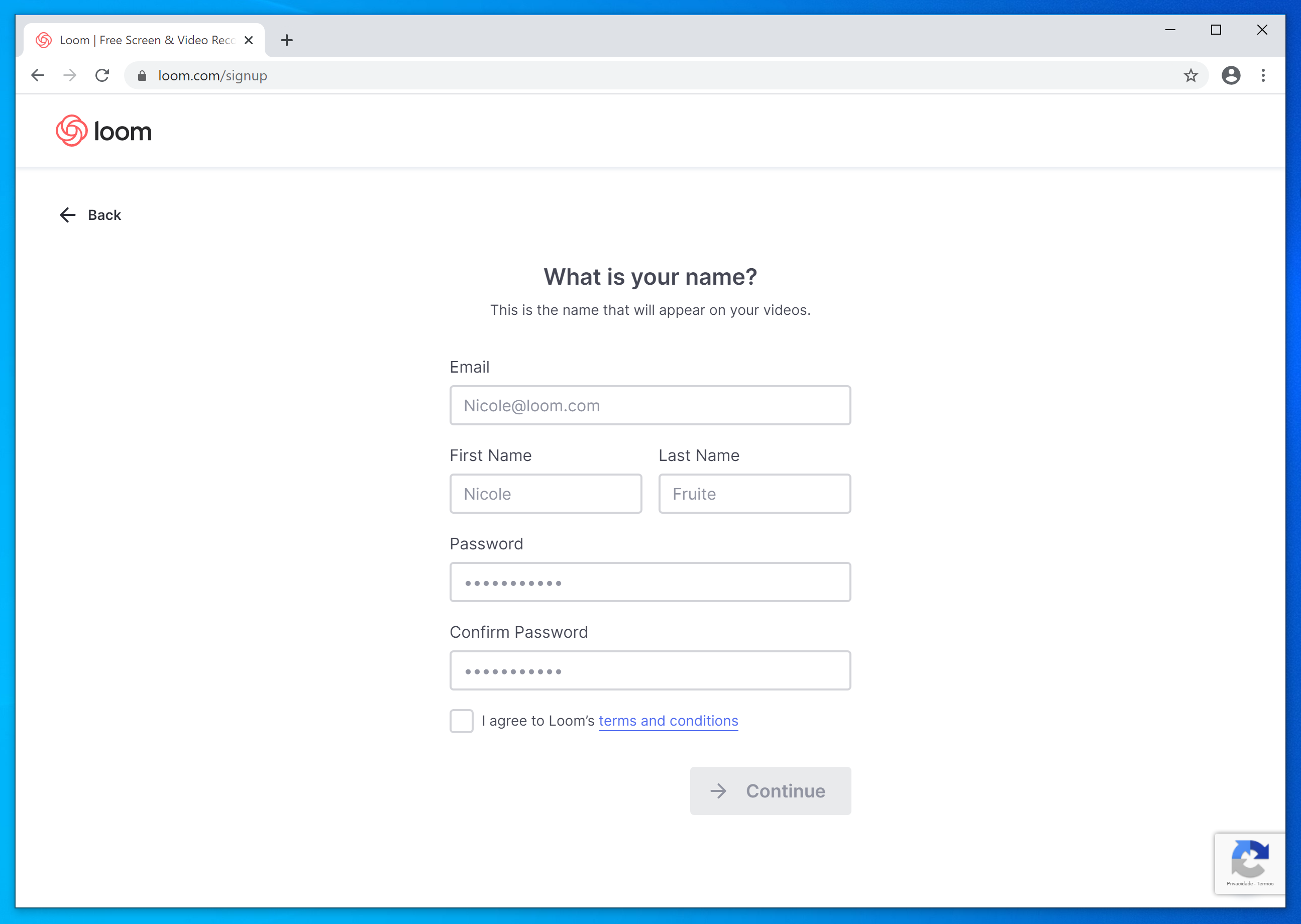
You’ll be redirected to a sign-up page; we suggest creating an account with your university email if you’re a teacher or student. That way, you can request the premium version for free later on.
Fill in your details, create and remember your password, and click continue.
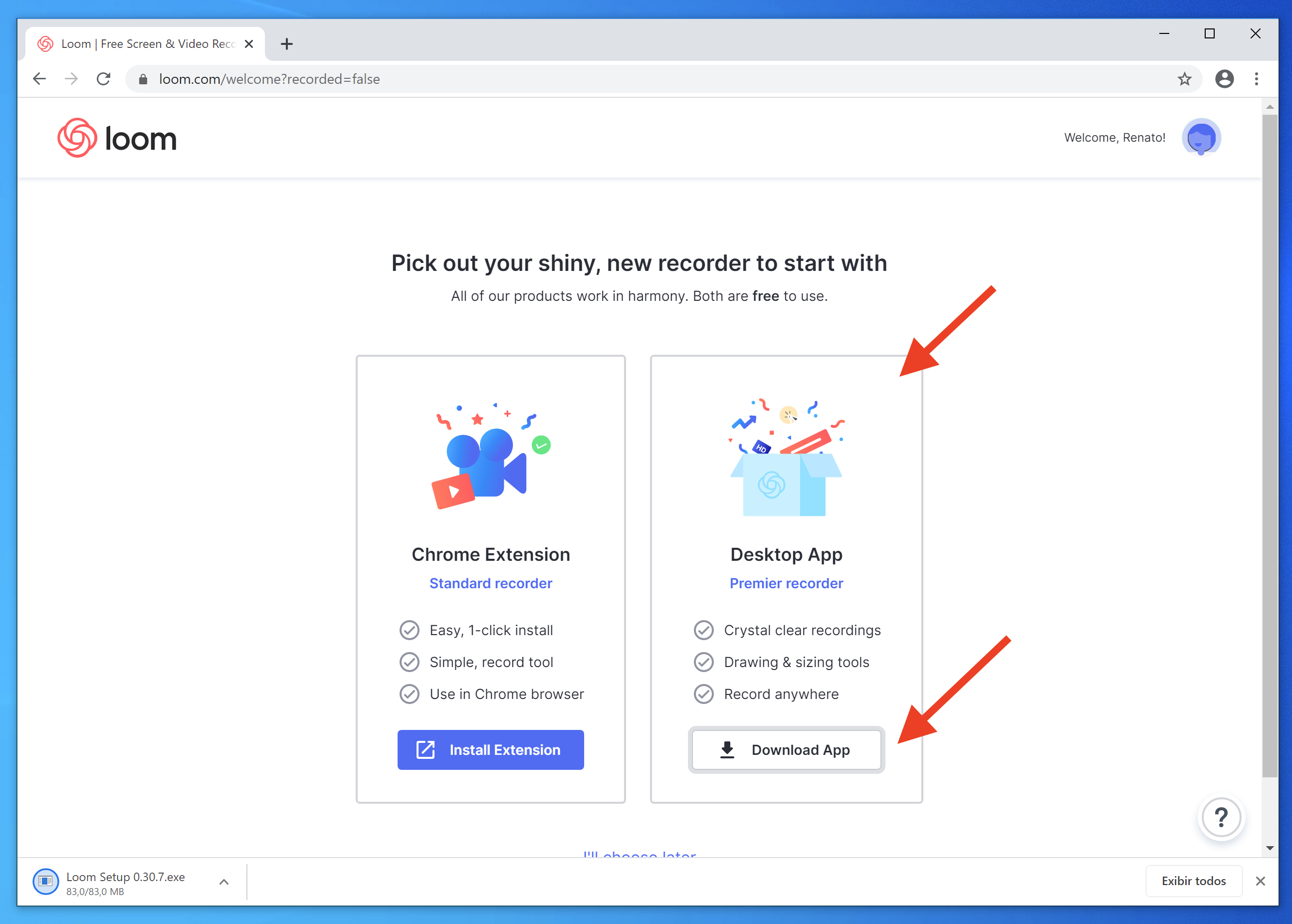
Next, choose the Desktop App option and install the downloaded application.
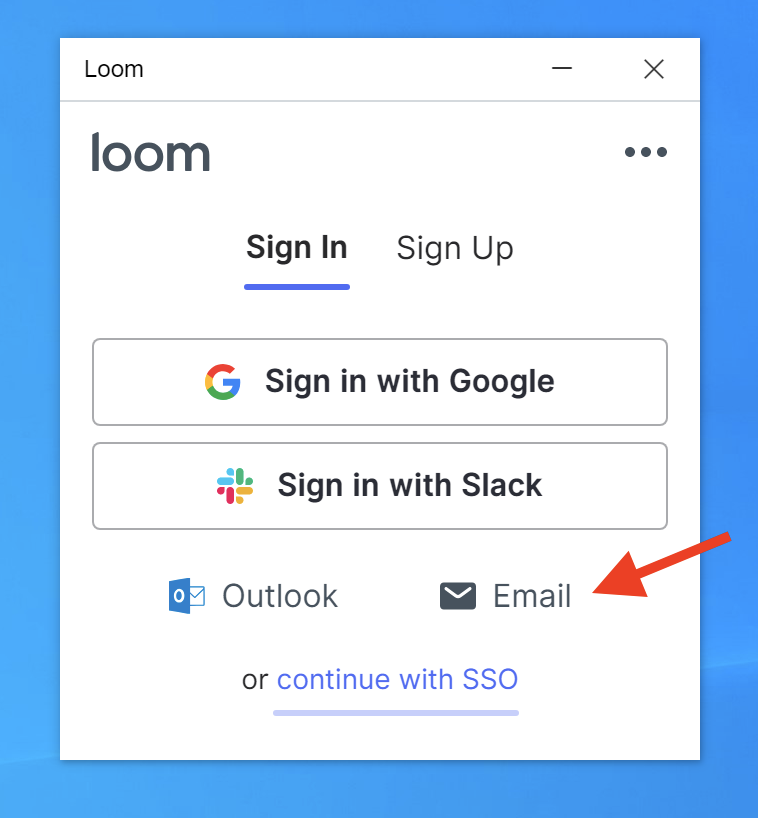
After installing, open the app and choose the Email option. Then, type in the password you created in the previous step.
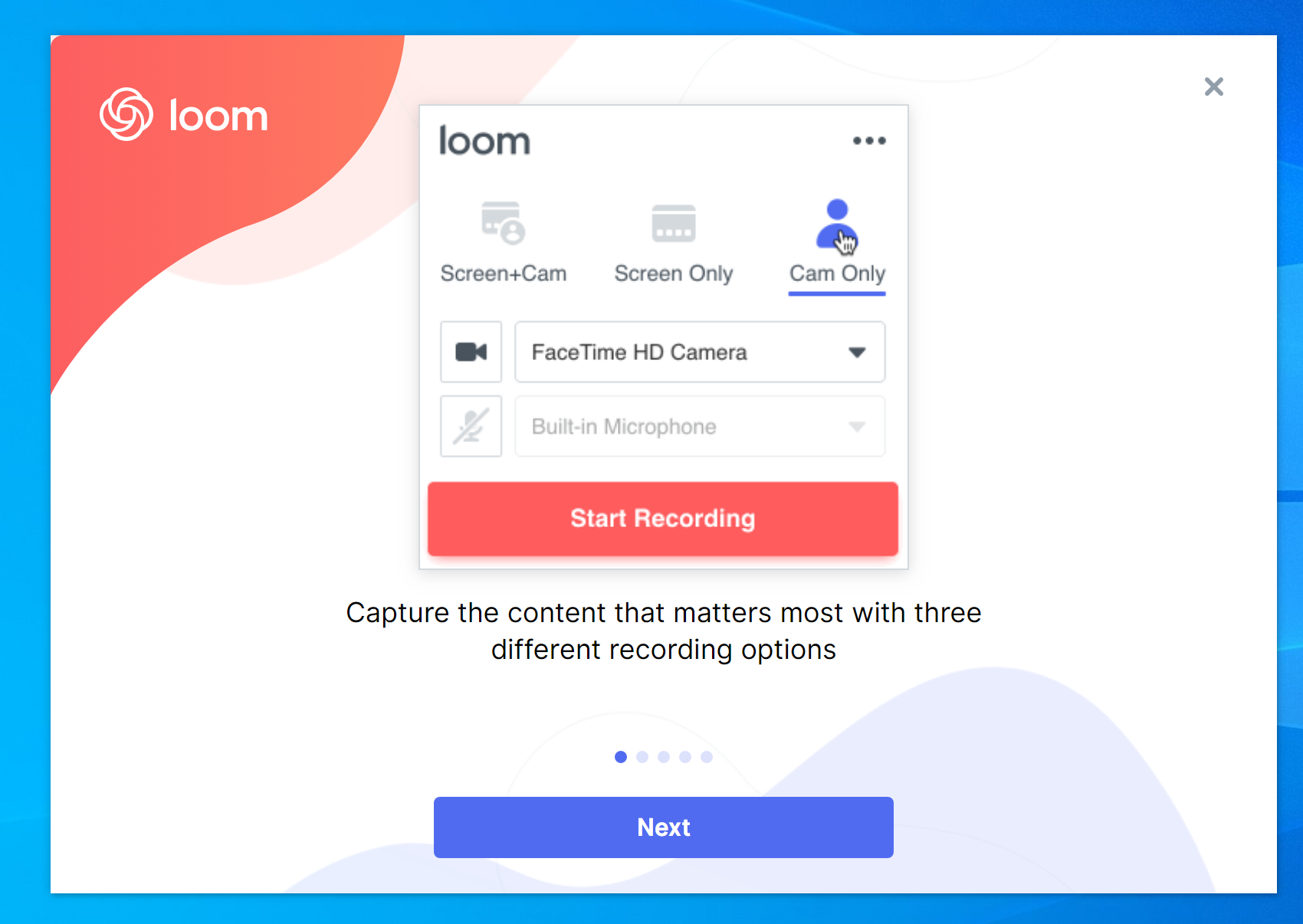
Type your email and password and you’ll reach the screen below. Just click NEXT until the end.
Done! Once installed, this is what it looks like!
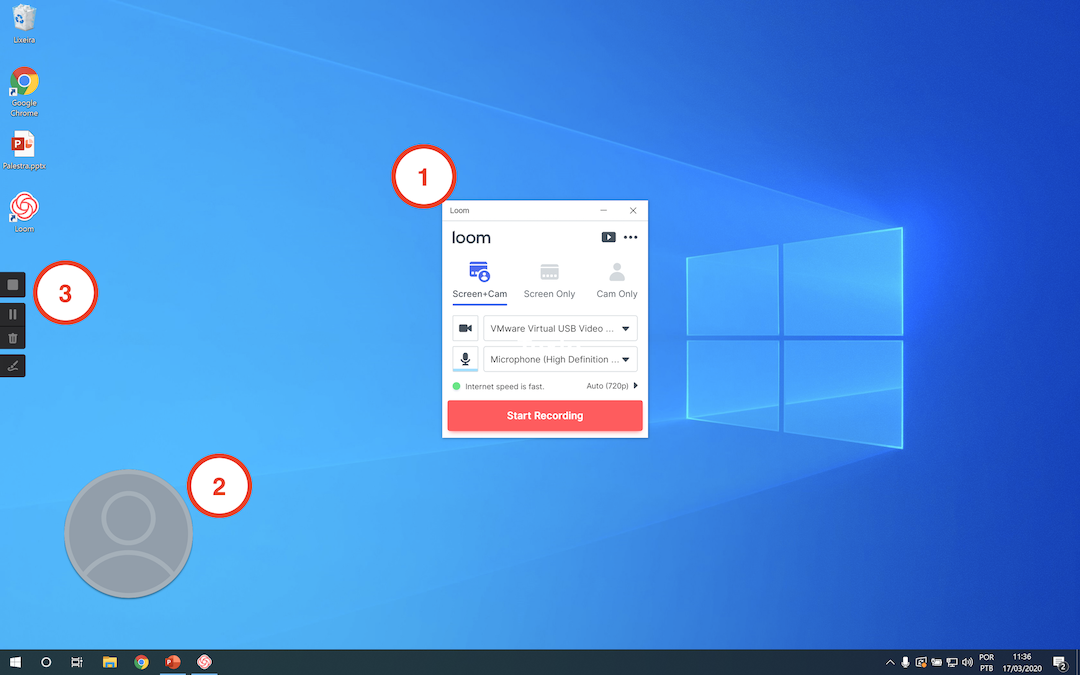
1 – Settings panel
2 – Your camera
3 – Quick controls to pause and stop recording your video
Recording your talk
This is your moment. This is the easiest part of the whole process:
- Position your image by dragging the bubble with your picture to the right, left, wherever it looks best
- Open your presentation
- Click the red “Start Recording” button
- Wait for the countdown: 3, 2, 1… And go!

When you’re done, just click the little red button on the left side of the screen.
-> TIP: Do a test recording before starting for real, to check that everything is working normally.
Wrapping up and sending it in
All set, now just pay attention so you don’t go over the time set by the organization. When you’re done, just press the red button on the left side of the screen.
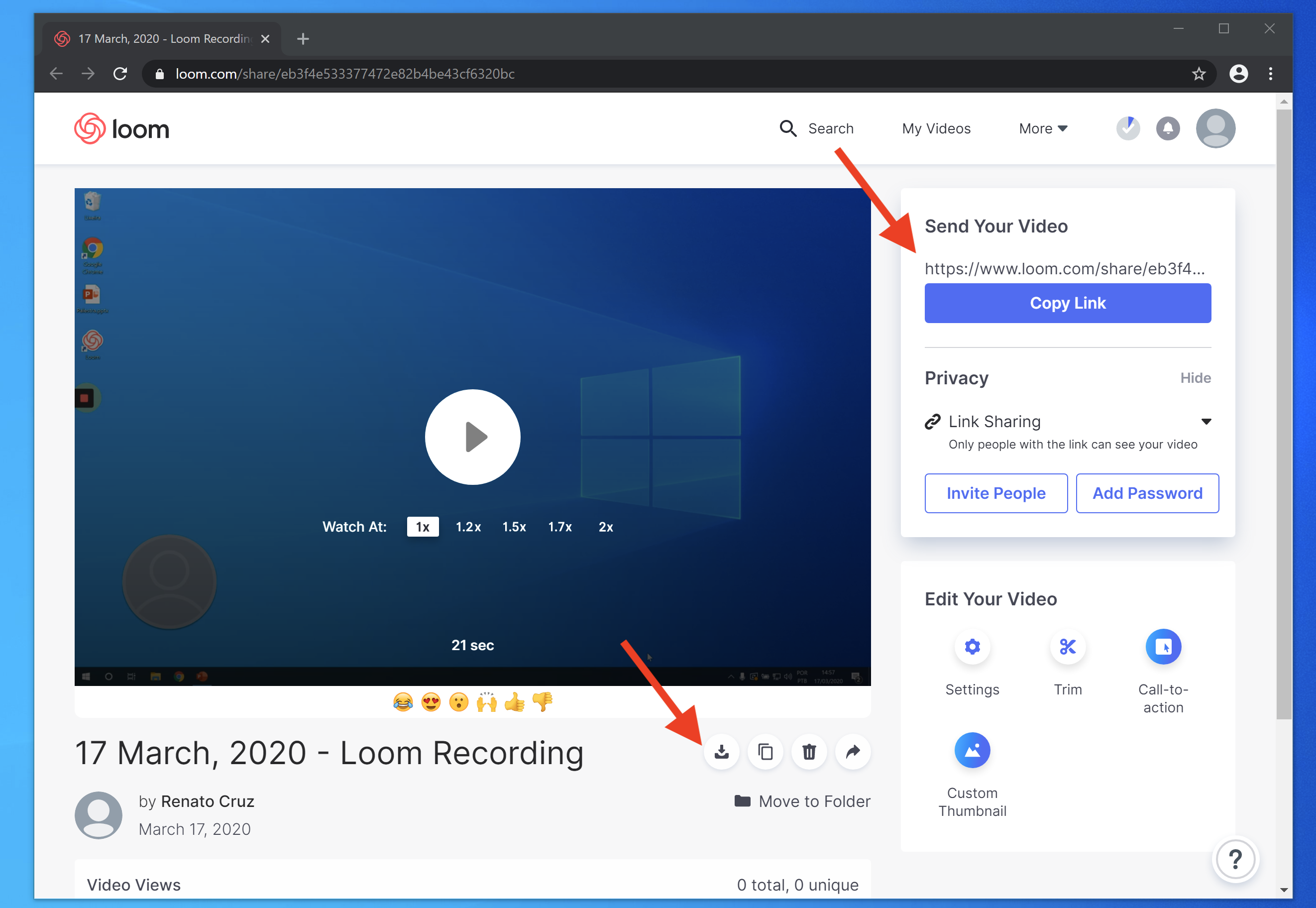
Once finished, a new screen will open. Copy the link or download the file and send it to the organization!
Easier than you imagined, right? Later, share with us what you thought of the tool.
I bet your online talk will be a success!