Going live on YouTube from your phone has become quite common these days! Especially for people who tend to hold online events, like webinars, for example.
After all, YouTube Live is one of the most used online streaming tools for people running this kind of event.
The only restriction is that, unfortunately, mobile streaming still isn’t available to everyone. Only channels with more than a thousand subscribers can stream lives from their phone.
If you’re just starting your channel or haven’t hit that number of subscribers yet, you can go live from your computer instead.
So, today, we’ll give you a complete step-by-step on how to stream a live from your phone using Google’s free tool, YouTube Live.
What is YouTube Live?
It’s a tool that lets you stream live over the internet. In it, the user can choose to stream their videos through a computer or a phone.
With this feature, the video is shown at the same time it’s being filmed, and, on top of that, once the stream ends, the content stays recorded and is automatically made available for the audience to watch anytime.
What type of event is it best for
Mobile streaming is ideal for shorter events, where the speaker covers a single topic or subject.
It’s not recommended for paid or restricted events, since the stream can be accessed by anyone on the internet with the link.
It’s also a low-cost option, since it doesn’t require investing in more elaborate streaming equipment.
Advantages of using YouTube Live on mobile
Using YouTube Live on your smartphone gives you even more convenience than on a computer. And you’re about to find out why!
Convenience
The simplest way to produce and stream live video on YouTube is from your phone. After all, you’ll only need a smartphone, headphones, and a 4G or Wi-Fi connection. Pretty convenient and simple, right?
If you want, you can hold your event in public or busy places if you don’t have access to a computer. You can also, if needed, stream content while on the move. Maybe teaching an outdoor class is part of your plans?
Android and iOS devices already have access to this feature through the YouTube app. You just need to download it on your smartphone!
Low cost and ease of use
If you’ve never done a live stream, you might be wondering whether planning this kind of event is expensive.
Or whether it’s very complex to use YouTube Live, for example. But I’ll show you it isn’t.
Using YouTube Live is quite easy and doesn’t require you to be an expert on the subject. Nor an audiovisual professional to record videos.
You just need to have a channel on the platform, a phone, and a 4G connection, as I mentioned in the previous topic. And, of course, willingness to record a webinar and stream your video live.
So, you don’t need to buy anything new (if you already have a phone and headphones). Only if you’d like to get a smartphone with a better-quality camera for recording video, for example.
But the basics already get the job done!
Reach and audience
As you probably already know, YouTube is one of the biggest social networks in the world!
According to Alexa rankings, YouTube is the second most visited site in the world, coming in just behind Google, which owns the platform.
And, unlike most of the world’s most-used social networks, it’s focused on audiovisual production.
So, it’s ideal for anyone planning to do a webinar, online talk, or any kind of live stream, without viewer restrictions.
Every day, thousands of users access the platform and watch videos. So, your live has a good chance of reaching bigger audiences than if you used another social network.
Real-time interaction
During your webinar’s stream, YouTube provides a comment box for attendees.
This way, you can interact with your audience, answering questions, gathering feedback, all in real time.
This kind of feature the platform offers is great for bringing attendees closer and engaging them even more with the topic being covered in your webinar. Pretty cool, right?
How to use YouTube Live on mobile?
Now, let’s go through a complete step-by-step on how to start streaming a webinar through YouTube Live on your phone.
STEP 1
Open the YouTube app and tap the camera icon in the top-right corner of the screen, as shown in the image below. Then, select “Allow access.”
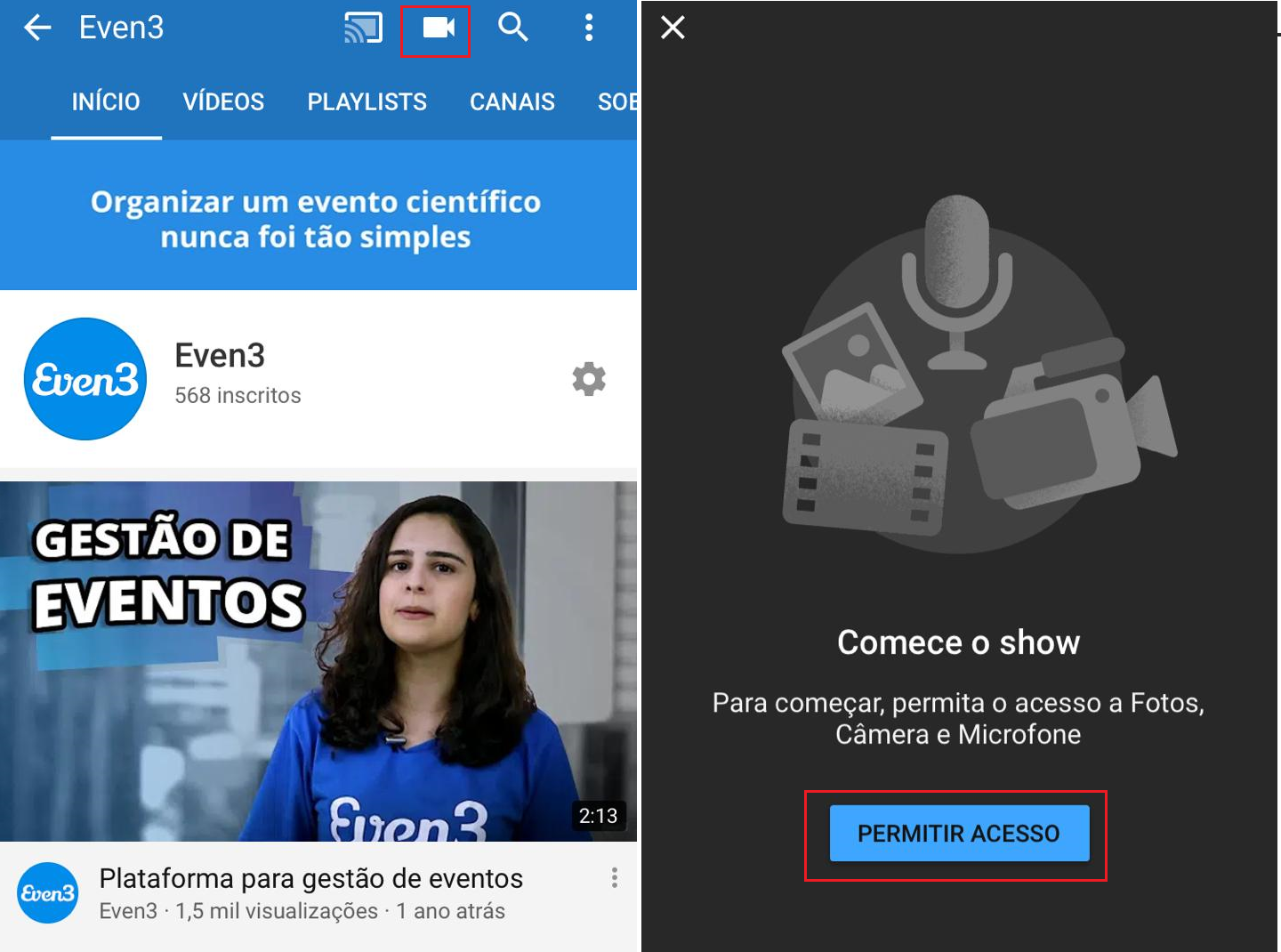
After that step, two options will appear on your screen. Tap “Go live.”
STEP 2
If you have the thousand subscribers and want to continue streaming from your phone, YouTube will ask for a quick phone verification.
To do that, tap “Get started” and enter your phone number, type in the code, and confirm your account’s authenticity.
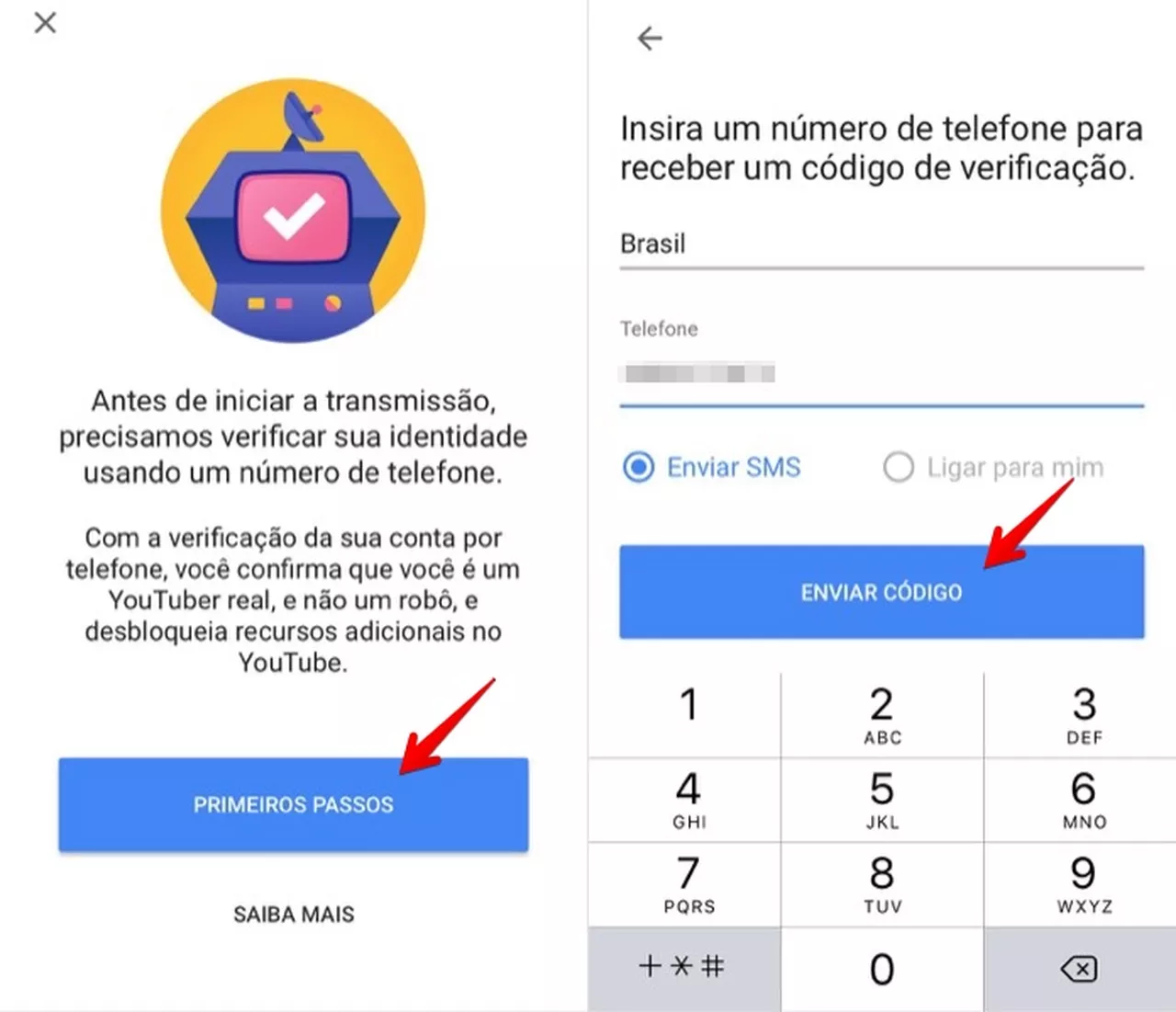
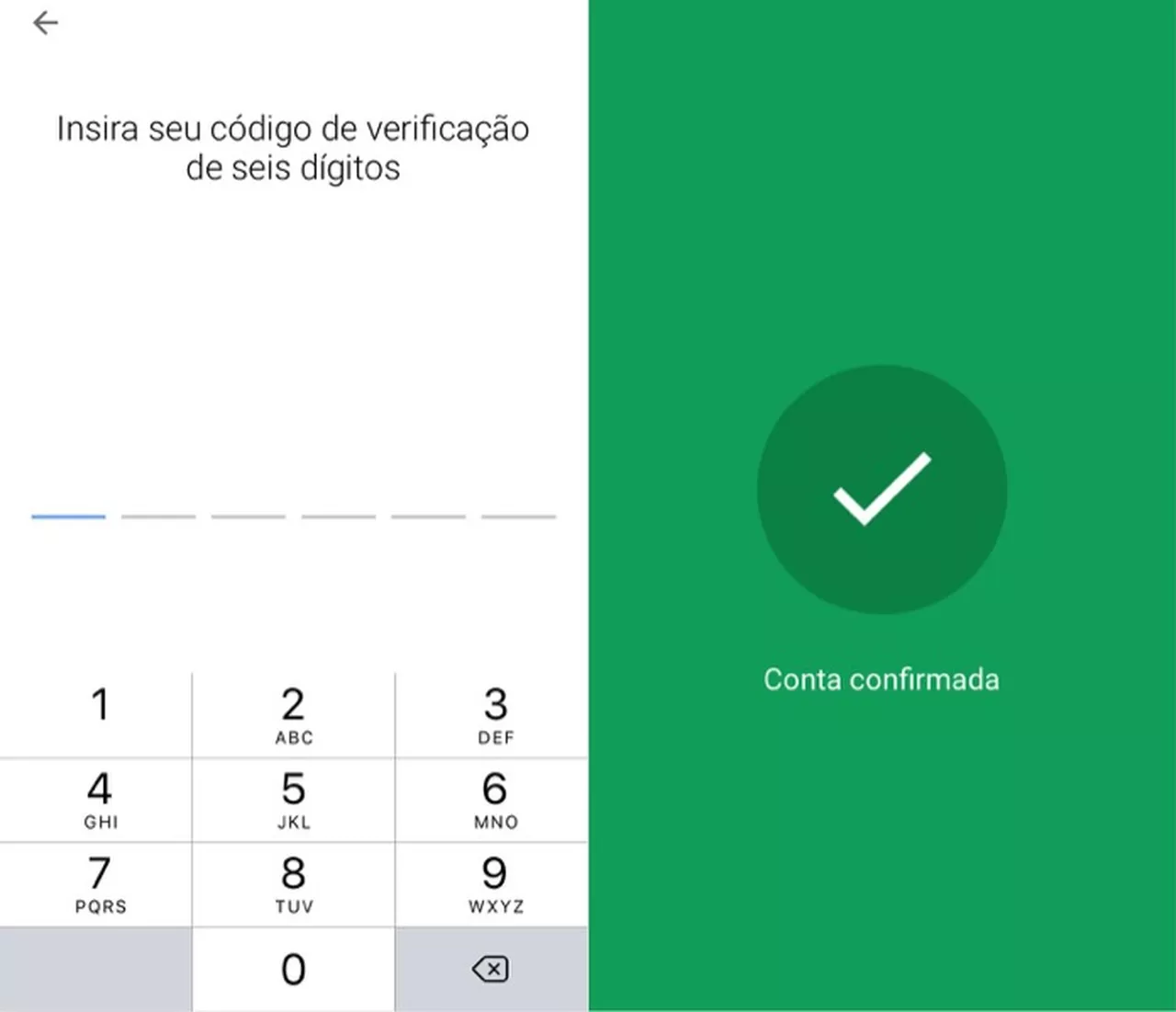
Once that’s done, you can quickly configure your stream, allowing chat or even restrictions, promotions, and monetization.
Yes, it’s possible to have a monetized channel on YouTube and earn from videos produced and published based on how many views they get.
STEP 3
Remember to add a title to your stream; ideally, it should be the topic that’ll be covered in your webinar.
If your webinar is paid and you already have a platform to manage registrations and ticket sales, you can make your webinar private so only people with the link can watch it.
Then, tap “Share” to copy or send the live stream link to your social media.
Or, if you’d rather, you can send an email marketing message to your event’s registrants letting them know the webinar is live and include the video’s access link.
Final step
When your webinar is ready to start, tap “Go live” to begin the stream.
And, at the end of your stream, YouTube will show you your stream’s statistics.
#Even3Tip
During the stream, you can make a few quick adjustments. Like, for example, switching your phone’s camera and showing or hiding chat comments.
Paid webinar: how to manage registrations, sales, and stream on YouTube Live
If your webinar is paid and you need a way to control and manage the whole registration and ticket sales process, the ideal is to choose an events platform that integrates with YouTube Live.
With Even3, you can manage your webinar’s entire cycle and stream it online using YouTube Live.