Have you heard of Loom? This free tool can be the perfect ally for improving interaction in online events.
Fully digital, Loom can be used for everything from webinars and workshops to team meetings and product presentations.
It’s a tool packed with features that can transform your events. Let’s take a closer look:
- What is Loom?
- What are the advantages of Loom for your online event?
- How to use Loom?
- How to use Loom on the Even3 platform
What Is Loom?
In recent years, the market for interactivity and video-recording tools has been improving fast.
Loom emerged from this wave of technological innovation. It was originally created as a simple tool for recording quick videos.
But today, Loom is a full-featured tool for videos and digital events, with a set of advanced features.
These features include recording your screen and camera at the same time, automatic transcriptions and captions, background customization, and a built-in online video editor.
For example, you can record content for a workshop, showing your screen while viewers see your image in the corner of the frame.
On top of that, Loom lets you create high-quality videos, use annotation and editing tools, and share content in a professional, effective way.
And the best part: all of this can be integrated into your event.
Advantages of Loom for Your Online Event
Now that you know what Loom is, let’s go over its main advantages for your online event.
Free starter plan
The first, and maybe biggest, benefit of using Loom for events is that it offers a range of features completely free of charge.
So if you’re just getting started in the events world, or you’re organizing a smaller event, the basic plan is ideal for you.
With it, you can use the tool to record up to 25 videos at no upfront cost.
On top of that, Loom has a referral program: inviting partners doubles the number of videos you can record.
Ease of use
Loom has a friendly, easy-to-navigate interface, which makes recording, editing, and sharing your videos simple.
It also lets you easily choose exactly which screen you want to share.
That can be a specific browser tab, a system window, or just your camera.
This makes it ideal for creating video lessons, workshops, event openings, and informational messages, among other things.
Editing within the tool itself
After recording a video in Loom for your online event, you can make adjustments right inside the tool.
You can trim clips and adjust the beginning and end of the video.
You can also add visual elements and soundtracks in a simple way.
And best of all, you can do it directly in the tool, with no specialized editing knowledge required.
Imagine you’re recording a talk and you misspeak partway through the explanation — with Loom, you can cut that part out before releasing the talk to your audience.
Collaboration across your team
When it comes to online events, having an engaged, aligned team is key to keeping content quality high. Loom can help with that too.
The tool lets your team leave comments on specific parts of the videos, making it easier to interact and collect feedback.
That way, you can review comments in real time and adjust the content whenever needed. Pretty great, right?
How to Use Loom
Now that you understand how Loom can be an important ally, it’s time to learn how to actually use it.
First, it’s worth explaining that because it’s so versatile, Loom works across multiple platforms.
You can use the tool through its official website, by installing the browser extension, or through the Android and iOS apps.
For online events, we recommend using the desktop version through the official website.
Create your account
The first step is to create your account. Go to the website and click “Get Loom for free.”
After creating your account and logging in with your details, you’ll get initial access to the tool’s dashboard.
All of Loom’s features are available from this dashboard.
Key information on the dashboard
The first time you open the home page, you’ll find some important information.
You’ll have access to videos you’ve already recorded, your edit history, collaboration invites, and the tool’s general settings.
Recording your first video with Loom
Recording a video with Loom is very simple.
1. On the tool’s home screen, select the “Record a video” option.
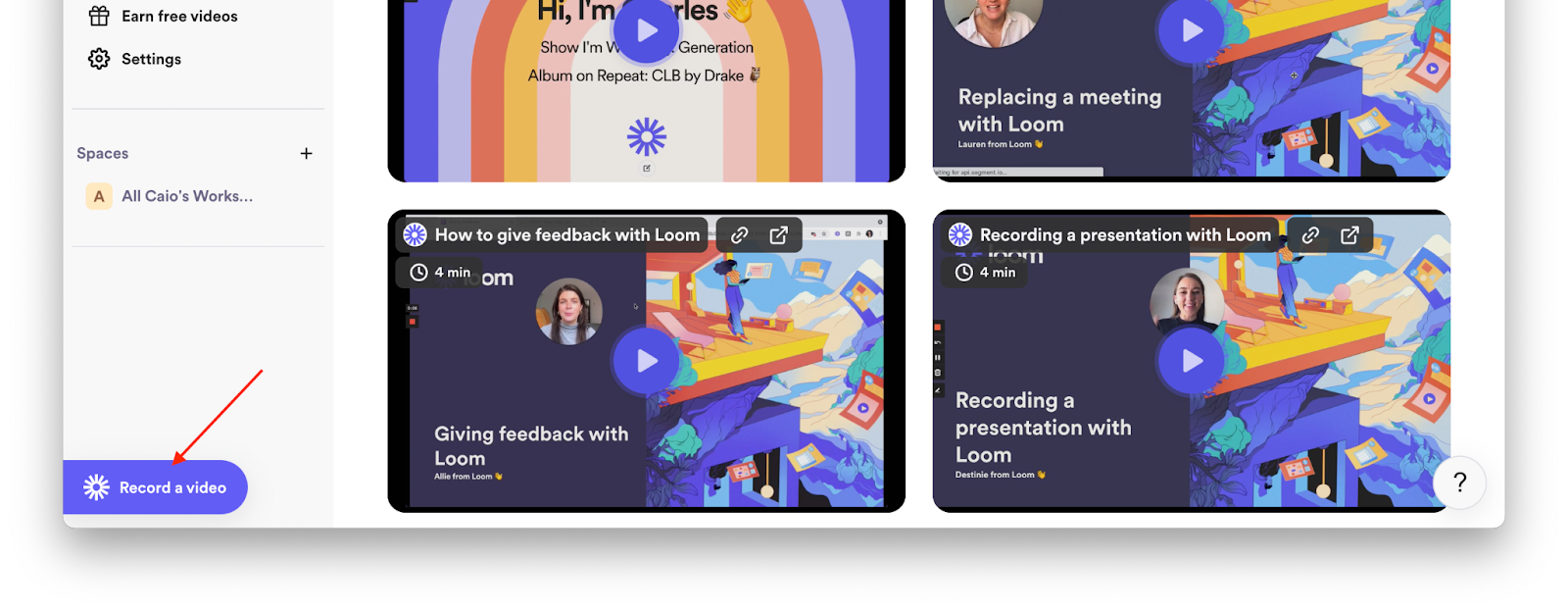
2. Next, grant the necessary browser permissions: camera, microphone, and screen.
3. After confirming the required permissions, choose what you want to record from the menu. You can pick your entire screen, a window, a browser tab, or just your camera.
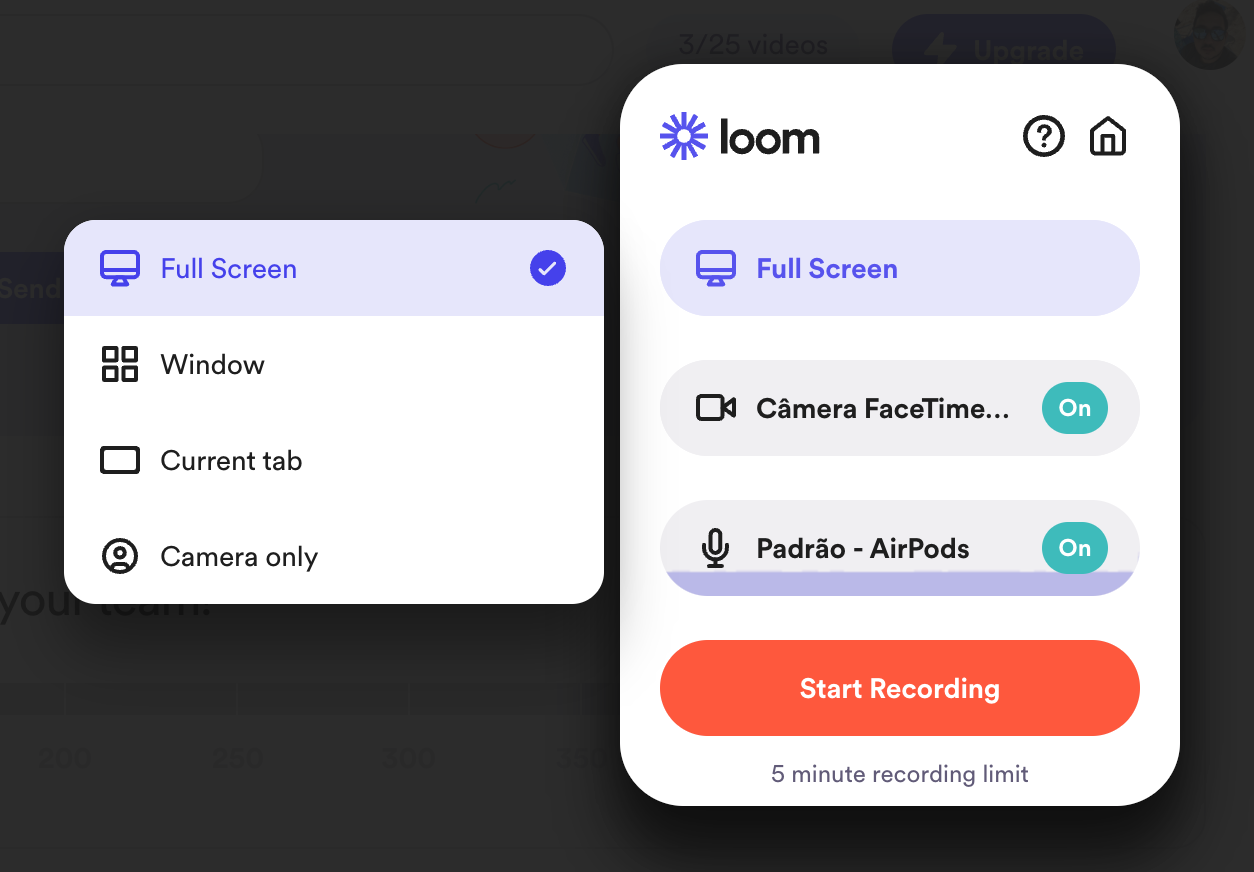
4. Then, select the camera and microphone you want to use.
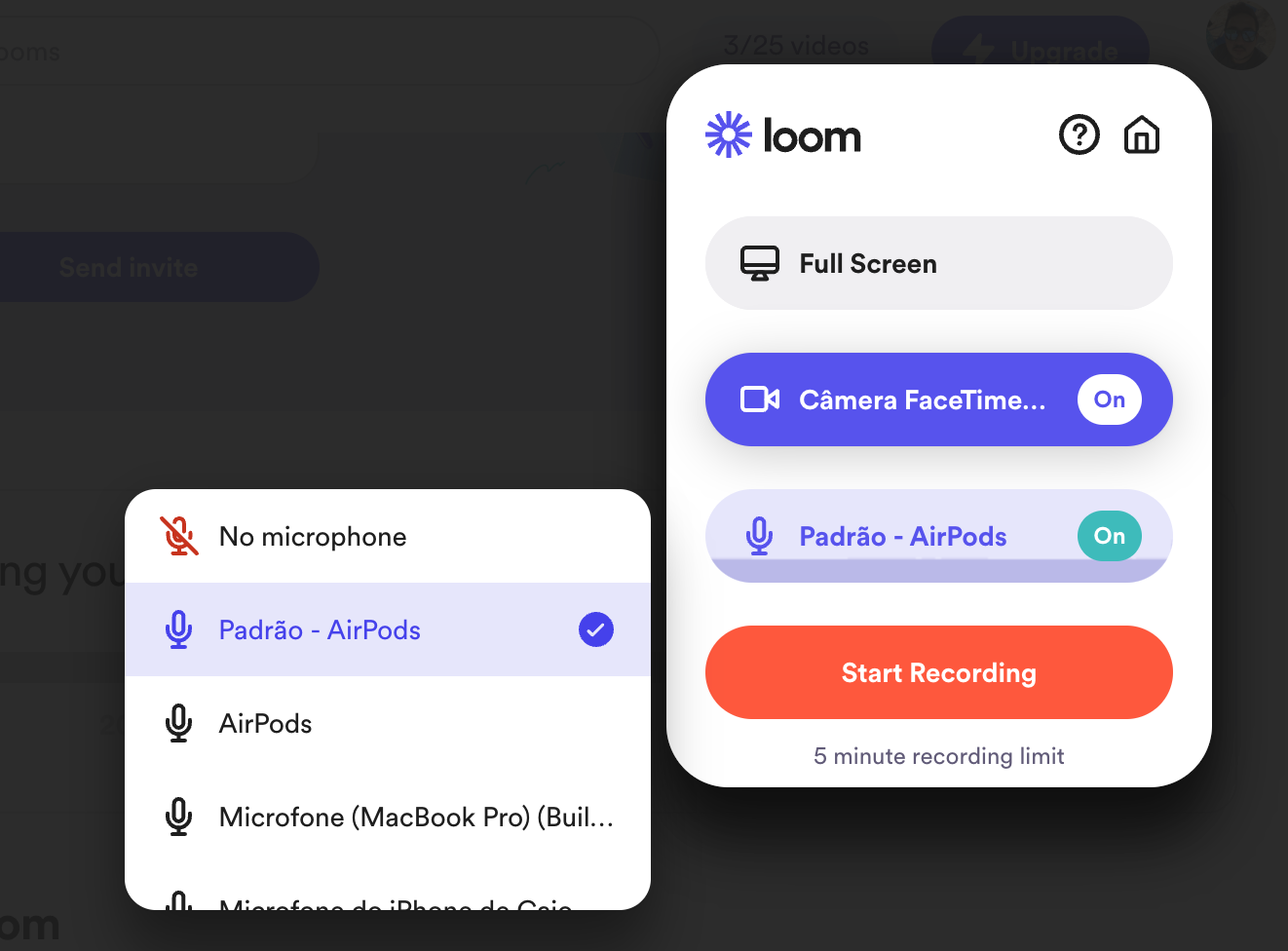
If you’re just using your laptop’s built-in microphone and camera, that setup is selected automatically.
But if you prefer, you can add external cameras and specific microphones for your recording.
5. Hit the “Start recording” button and you’re set — now just record your video.
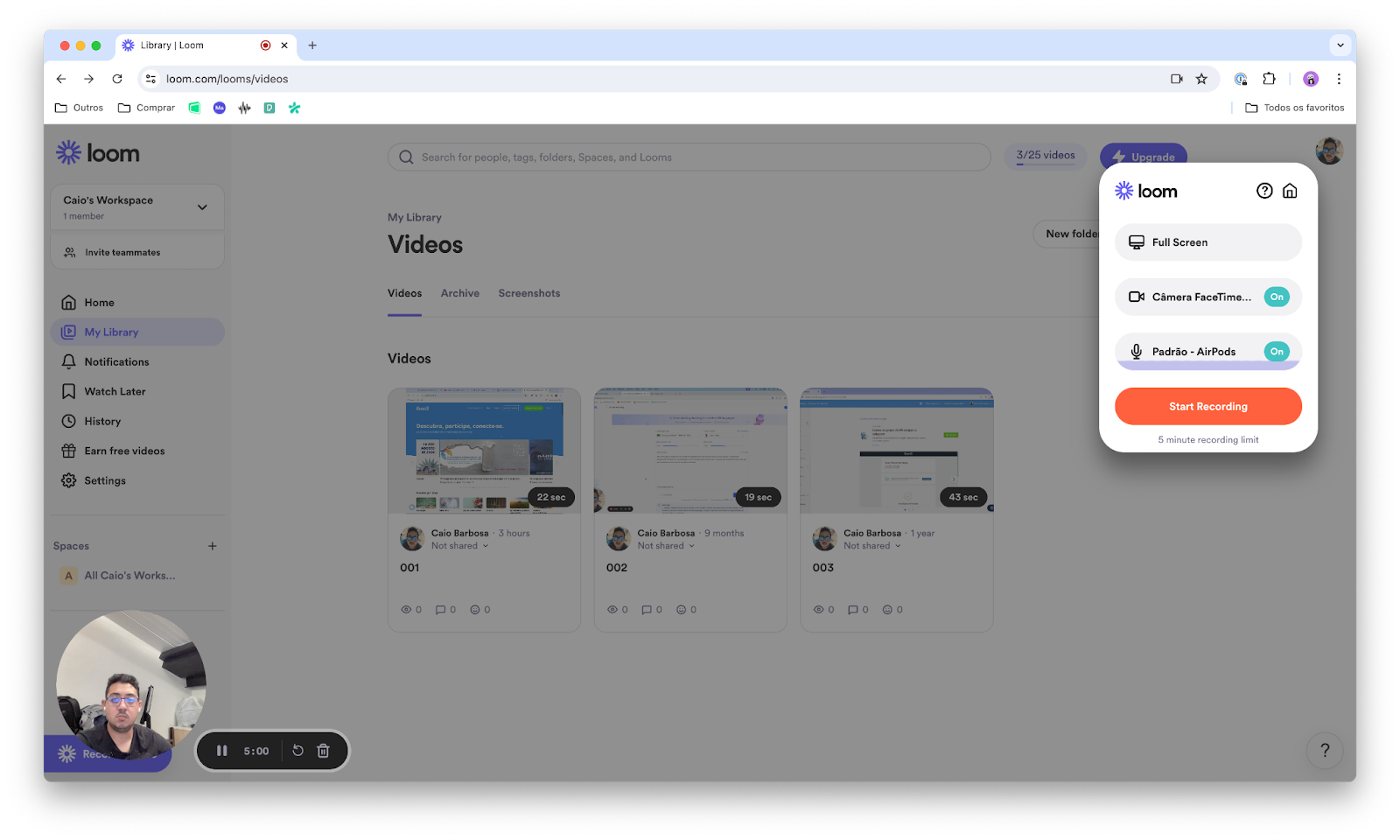
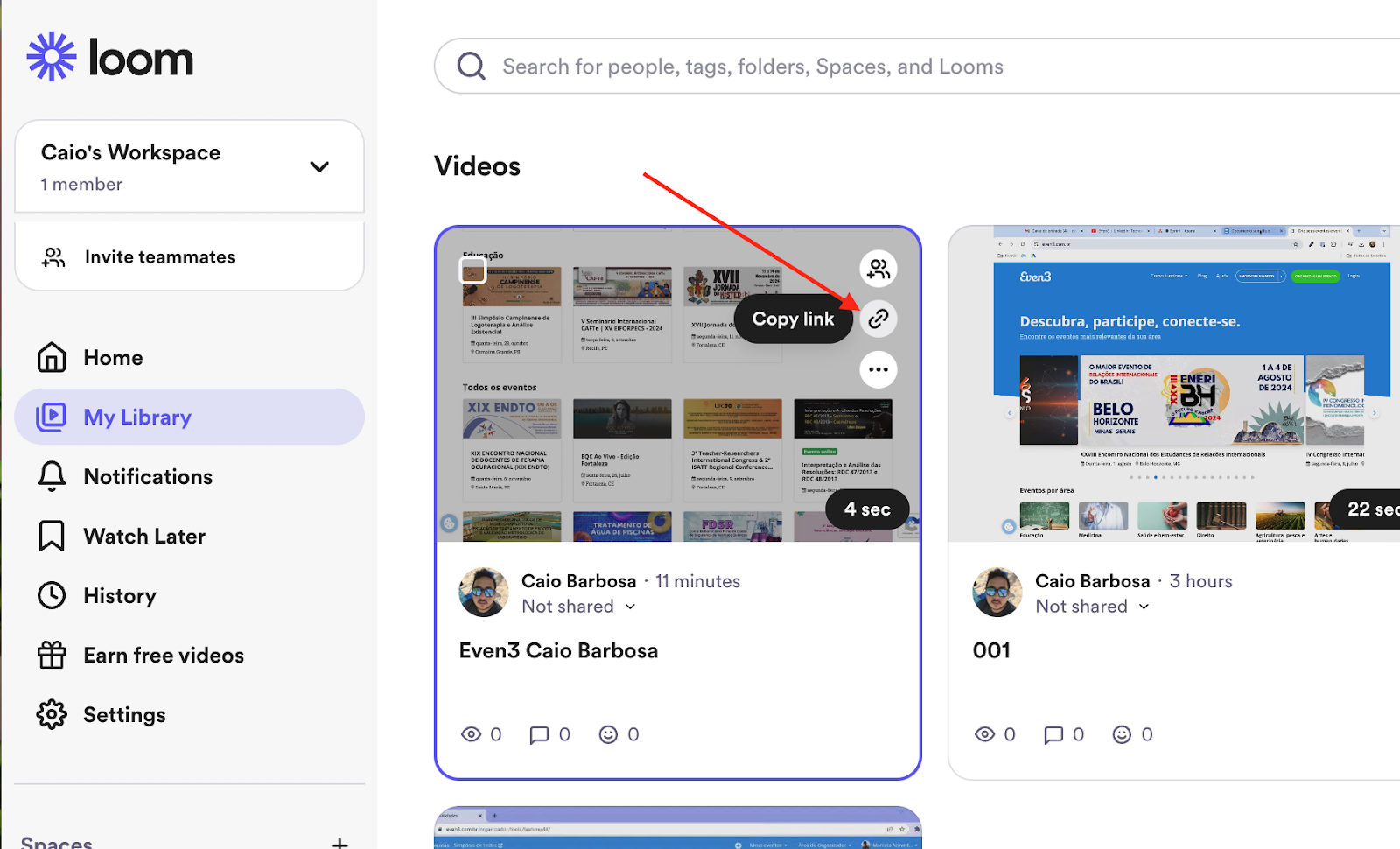
6. After you finish recording, you’ll find all your videos in “My Library.”
How to Use Loom on the Even3 Platform
Here at Even3, you can broadcast your event using a pre-recorded video format.
For this type of broadcast, you’ll need to upload a video you’ve already produced and make it available for your registrants to watch.
So now it’s just a matter of uploading the video to your online event.
1. Look for the “My Library” option in the tool’s menu.
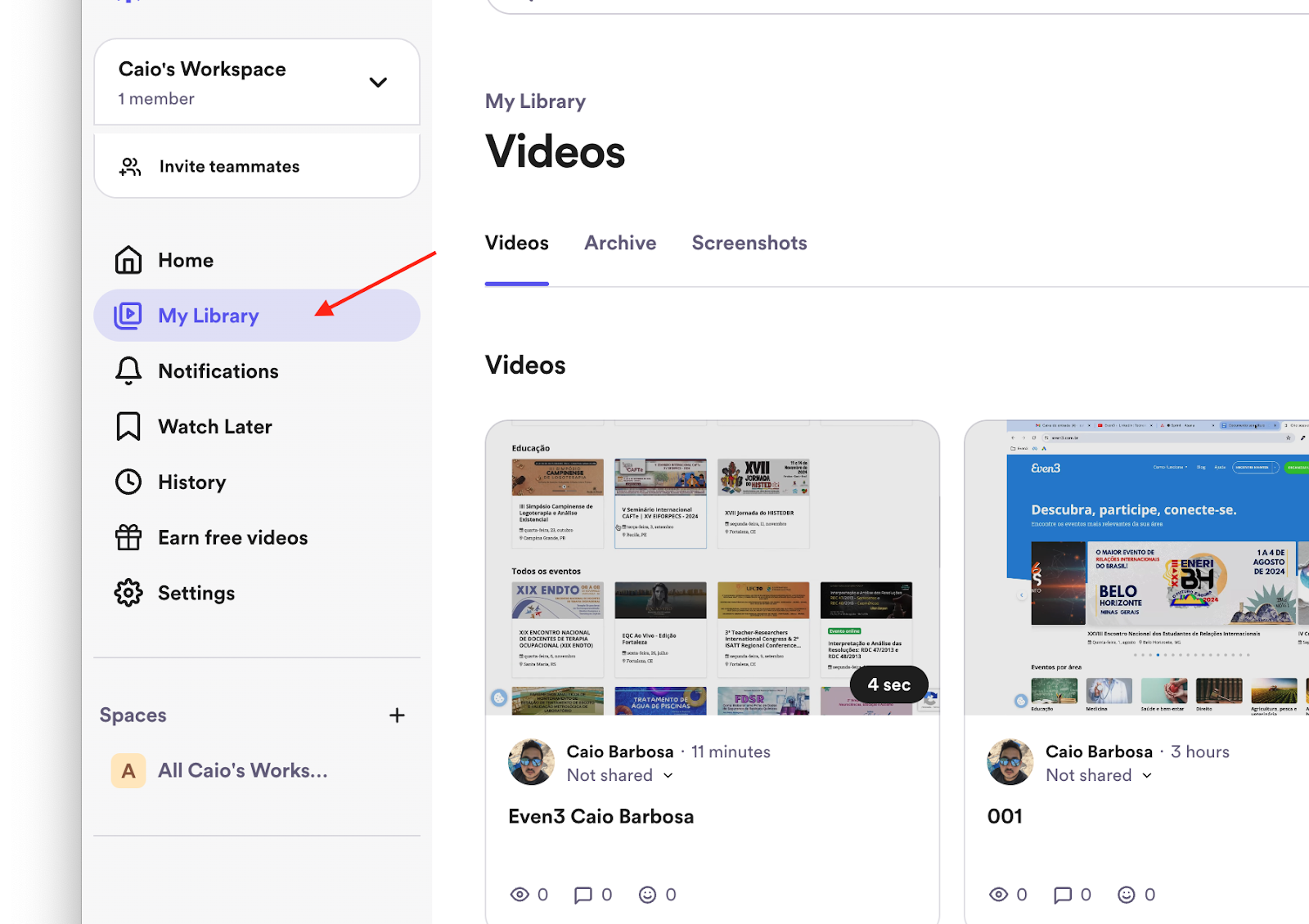
2. Next, hover over the video and click the “Copy Link” icon.
3. Inside your event on Even3, in your Organizer Area, select the pre-recorded video broadcast type and choose Loom as the platform.
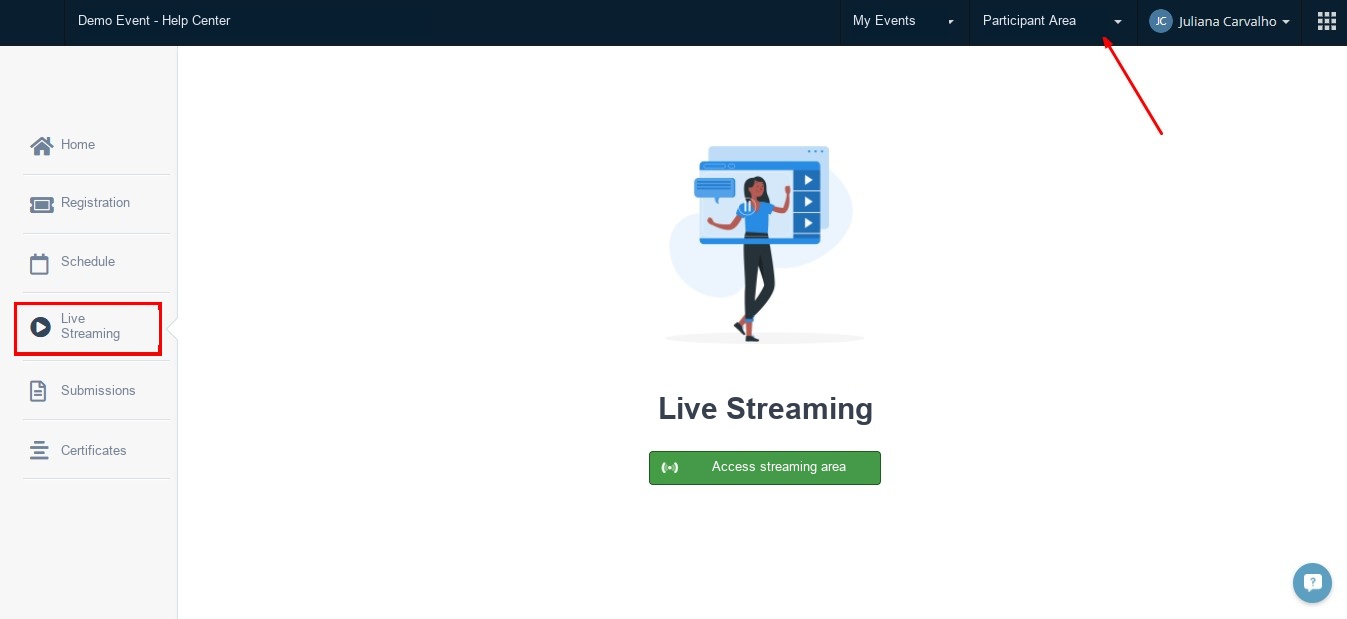
Then paste the video link into your event, and once you publish the broadcast, the video will be available to attendees in the Participant Area, under the Online Broadcast menu.
Conclusion
Integrating Loom with the Even3 platform can significantly boost the quality of your online events, making them more dynamic.
By combining Loom’s convenience with Even3’s built-in tools, you can create professional videos and make them easily available to your registrants.
Ready to put this into practice? With a complete events platform like Even3, you can build your event’s website, sell tickets, manage attendee data, generate certificates, and host your video content, all in one place, so you can focus on creating great content while we take care of the rest.