Have you ever imagined staying in touch with your attendees even after your event is over?
Nowadays, email marketing is one of the best communication strategies for that. And it can even be free!
But you’re not going to manually send 3 emails a week to over 1,000 attendees, right? Just thinking about it is exhausting! After all, the work is huge, repetitive, and still runs the risk of landing in spam.
That’s why hiring an automated email sending service, like Mailchimp, becomes essential for anyone who wants to optimize their work. Let’s take a look at one of your options:
What is Mailchimp? An email marketing tool for events
Mailchimp is one of the companies that offers email marketing services.
With a simple, easy-to-use setup, the platform already offers ready-made email templates to make organizers’ lives easier!
Their free plan lets you send 1,000 emails per month and register up to 500 contacts. That makes it ideal for small to medium-sized events.
Even3 + Mailchimp
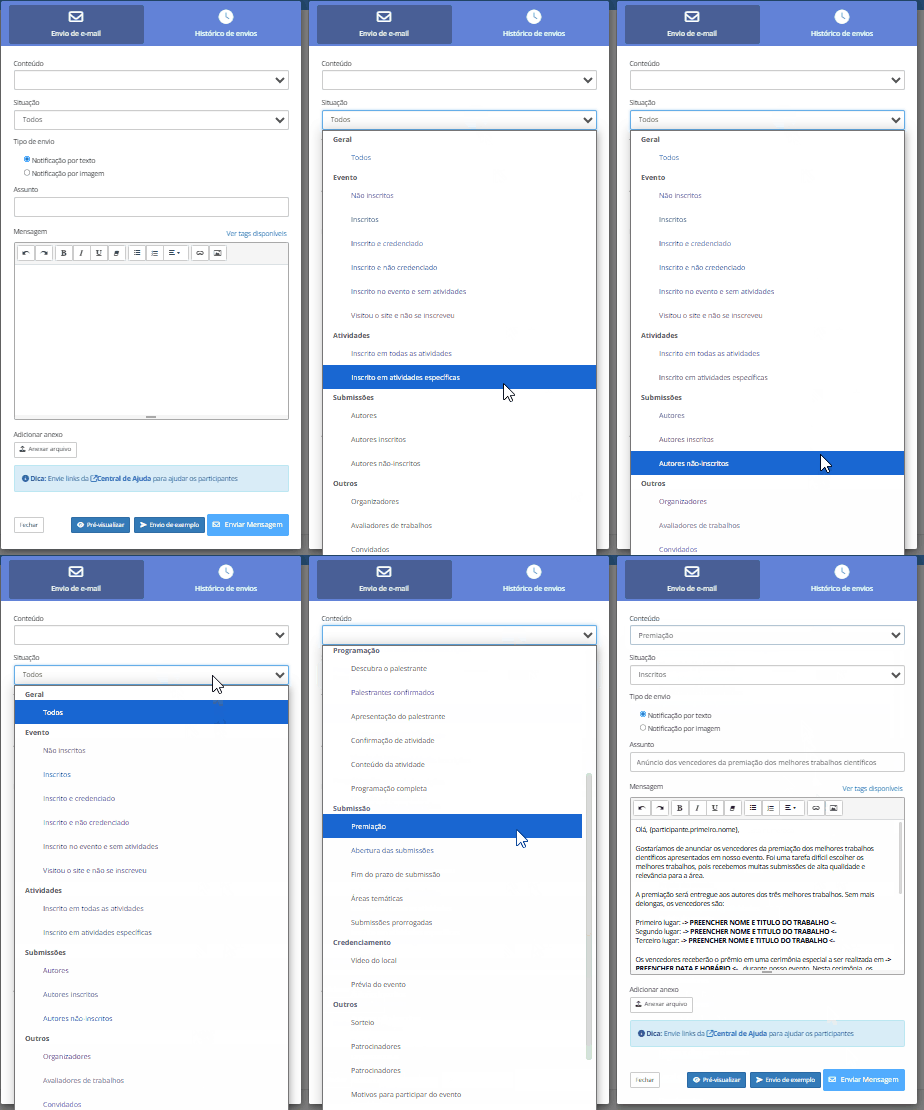
If you already use Even3, you know it’s possible to send emails to your attendees directly from the platform, and for free!
There, you actually get even more benefits than Mailchimp. After all, you can take advantage of audience segmentation to send specific emails only to attendees, speakers, website visitors and other categories.
You can also count on ready-made email templates.
But once the event ends, you need an email marketing platform to keep going with the relationship you’ve already started.
This will be important for turning your attendees into customers, following up with them, building anticipation for future events, and building loyalty.
To do that, you just need to export your event’s People list to Mailchimp and start communicating. I’ll teach you how to complete this step, but first it’s important to understand how Mailchimp works.
How to create a Mailchimp account?
You can create a free account on Mailchimp.
First, go to the website www.mailchimp.com
Now, just follow these steps:
- Go to the Mailchimp website and click “Sign Up Free”.
- Enter your email address, username and password.
- Confirm your account through the email Mailchimp sends you.
- Fill in your organization’s basic information to finish setting up your account.
Why create a contact list in your email marketing tool?
A contact list works like an address book. It should contain the emails and information of people who have shown interest in your event or who have already registered as attendees.
Speakers and reviewers can also be there. But you’ll need to split these groups.
After all, in email marketing the content is fully personalized and should vary according to the profile of the audience you’re addressing. That’s why it needs to be segmented.
In other words, email marketing content for events NEEDS to be relevant to whoever receives it. That’s why it’s important to divide your audience into distinct groups.
For example, a speaker shouldn’t receive the same content as an attendee who registered for a round-table discussion.
Remember I told you that, in Even3, you already have this division done automatically? In tools like Mailchimp, you’ll need to create these segments yourself.
I’ll teach you how to do that! With a well-built contact list, you’ll already have a powerful communication strategy in hand.
How to add contacts in Mailchimp
Import your People list from Even3
From your event’s People area in Even3, export the participant list as a spreadsheet. This file will contain the data you need to build your contact list in Mailchimp.
Upload your list to Mailchimp
Now that you have access to the spreadsheet, you can start creating your event’s lists in Mailchimp.
In Mailchimp, there are three ways to upload a contact list. They are:
- Integrations with other apps, such as Salesforce;
- Through a csv/txt file;
- Copying and pasting contacts from xls files, such as Excel.
In this case, we’ll choose to copy and paste the information from Excel.
But if you’d rather, you can save your spreadsheet in .csv format and just upload it to the platform. The following steps will be the same:
Set up your contact list in Mailchimp
Now pay attention here! Even though it’s super simple to do, the settings may need a bit more of your attention.
As you could tell, there are a few crucial steps in setting up your contact list in Mailchimp. Let me explain them better:
Column matching
When you transfer a contact list, your spreadsheet’s columns turn into fields in Mailchimp.
But sometimes they aren’t identified automatically.
So, you need to tell it which field each column corresponds to. You can even create new fields.
However, remember to always use them in a standardized way. This will be quite important later on.
For example, in the “Name” column, Mailchimp will automatically understand that everything in that column refers to the name of someone at your event.
This way, you can automate filling in information in your emails.
Just place a tag in the email body and indicate that its information should be filled in with the data from the “Name” field.
Besides that, this information will also be crucial for creating segments in your list. Especially the data in “Category” and “Registration”.
Should I use tags?
In Mailchimp, tags are used to create more specific contact categories. In other words, beyond what’s already in your spreadsheet’s fields.
They label contacts and can later be used as criteria to create segments.
For example, you can create tags for people presenting papers.
Then, after you upload your contact list, just assign the tags to those people.
This can be an interesting strategy to further segment your audience. But tags need to be assigned individually and may take more work.
When should I use segments?
On the other hand, segments group your contacts into larger sets. So they’re much easier to create.
As I said, they can be created from tag data. But you can also use the spreadsheet’s own fields as filters to create segments.
For example, you can create segments from the different data in the “Category” column. Or create a segment for unregistered attendees based on the “Registration” category data. Get creative!
What’s the difference between tags and segments?
- Tags: Use tags to mark contacts with specific information and create segments from them;
- Segments: Use segments to create campaigns targeted at specific groups of contacts based on their needs and interests.
How to create an email in Mailchimp?
Finally, you can create as many emails as you want and use Mailchimp’s templates for free!
When creating your email, you might run into a few questions:
Regular email, automation, or landing page?
In short, if you want to send a message to a segment, it’s best to use a regular email.
Automations are email flows triggered by specific actions or events from your contacts, and may be a paid feature in Mailchimp’s plans.
Landing pages, on the other hand, are web pages created to collect contact information from new people for your list.
On Mailchimp’s free plan, there are some limitations for landing pages, and remember there’s a limit on the number of contacts you can save on the platform.
How to customize emails in Mailchimp?
Mailchimp’s email customization is completely intuitive. That’s why it’s our recommendation.
On the platform, you can create templates from scratch or edit ready-made, free templates. In this case, we used a ready-made template that can be customized with the email editor’s items.
So, use your creativity! Just drag the items into the editing area and get to work.
Use Even3 during your event
As you’ve seen, choosing the right platform for sending emails is essential for marketing. Especially to reduce your workload!
During an event, there are many things to pay attention to: schedule, certificates, check-in… We bet you want to optimize your time on emails and event promotion!
So how about relying on a platform that centralizes and automates everything for you?
With Even3, you can:
- Create your event’s website and customize it however you want;
- Send emails without leaving the platform;
- Create discount coupons, affiliate links and other marketing strategies;
- Manage every stage of your event in one place.
Get to know Even3 and take advantage of the possibilities of email marketing for successful events.