Have you ever stopped to think about how many people your event impacts?
So, once it’s over, what will you do with them?
Organizing an event isn’t just about delivering a one-time gathering. It’s about amplifying experiences.
In that sense, your attendees aren’t just spectators — they’re your community! And you can get them to engage with, follow, and promote your initiative.
One of the simplest and most effective strategies for that is using broadcast lists, especially on WhatsApp.
In this article, we’ll show you how to create and use a WhatsApp broadcast list for your event, engage attendees, and even integrate it with your event platform.
What Are Broadcast Lists?
Basically, broadcast lists are a feature that lets you send the same message to several people at once.
They exist on different social networks — for example, on WhatsApp, and on Instagram as a “broadcast channel.”
Unlike groups, where everyone interacts in the same space, on a broadcast list it’s usually you who drives the conversation.
On WhatsApp, for example, the conversation is individual. Each person receives the message directly in their inbox, as if it were sent just to them.
This is great for events because it:
- Ensures more personalization;
- Avoids the flood of notifications that drives attendees away;
- Gives more privacy to people who don’t want to expose their own number.
Why Create Broadcast Lists at Events?
During an event, keeping attendees well informed is essential to its success.
But it’s not always easy to communicate everything.
Broadcast lists help you:
- Automate communication with attendees, sending personalized messages more quickly;
- Share news and last-minute updates;
- Send important links, such as certificates, recordings, and supporting materials;
- Remind attendees of deadlines for registration or paper submissions;
- Create a consistent event promotion campaign across every channel your audience uses.
What’s more, using this feature strengthens the community around your event, since attendees feel like they’re getting special care and exclusive information.
3 Common Uses for WhatsApp Broadcast Lists
When sending messages through a broadcast list, it’s important to keep the tone typical of WhatsApp: be brief, direct, and use emojis to grab attention.
Also, don’t overdo it with messages! Since WhatsApp is a private channel, flooding it with messages can annoy your audience.
Here are some examples:
1. Quick Alerts About Schedule Changes
Quick alerts work like instant notifications. They grab attention and prevent someone from missing an important activity due to lack of information.
Sample message:
“Hey, remember there’s a session today at [EVENT NAME]? ✉️ The venue has changed! ⚠️ The “2025 Trends” talk will be at 3 PM in Auditorium A. See you there! 🎤”
2. Sending Materials and Links After Activities
A great way to show attendees you care is to send supporting materials right after a talk or workshop.
At the end of the schedule, you can send a PDF, slides, or a link to a satisfaction survey through your broadcast list.
Sample message:
“Hi, [name]! Here’s the material from today’s workshop: [link]. Take a moment to answer our survey for a chance to win prizes: [survey link] 🎁”
3. Reminders for Important Dates
Plan to send reminders one or two days before deadlines, like paper submissions or the opening of registration for a new edition.
This will help increase participation and conversion rates.
Sample message:
“Hi, [name]! Don’t forget: tomorrow is the last day to submit your abstract for the 2025 Education Congress! Submit here: [link] ⏳”
WhatsApp or Email?
Keep in mind that some event platforms, like Even3, also let you send these notifications straight from the platform to attendees’ emails.
That’s a more professional, easy, and fast way to communicate! But in some cases, it makes sense to use both channels.
To do this effectively, follow a few rules, like:
- Don’t overdo it with messages on either channel;
- If you’re sending a message to both email and WhatsApp at the same time, write different copy with language appropriate for each channel;
- Preferably, send only the most urgent or “immediate” messages through your WhatsApp broadcast list. Don’t overload attendees with information!
How to Create a WhatsApp Broadcast List
Creating a broadcast list is simple and can be done on both WhatsApp and WhatsApp Business.
Requirements for Creating Broadcast Lists
- People need to have your number saved. If they don’t, they won’t receive your messages;
- You can create as many broadcast lists as you want;
- You can add up to 256 contacts to each list.
Step-by-Step: Creating a WhatsApp Broadcast List
- Open the WhatsApp app;
- Create a new broadcast list:
- Android: On the “Chats” tab, tap the three-dot icon “⋮” and select “Broadcast lists”;
- iPhone: Tap “Settings” > Broadcast Lists > New List.
- Choose the contacts who will be part of your broadcast list, and you’re done!
- To send messages, select the list you created and write what you’d like to say. Your message will arrive as an individual message to each contact on the list.
It’s also worth using WhatsApp Business labels to create more segmented lists.
How to Edit or Delete a Broadcast List
- On Android: open the broadcast list, tap the “⋮” icon, then tap “Broadcast list info.” Edit whatever you’d like, or delete the list;
- On iPhone: Tap Settings > Broadcast Lists. Then tap the “i” icon next to the list you want to edit and make your changes. To delete a list, simply swipe left.
Which Is Better for Events: WhatsApp Groups or Broadcast Lists?
It all depends on your goal:
- Broadcast lists: ideal for quick, last-minute announcements, especially before and during the event. More private and organized;
- Groups: work better for interaction between attendees, networking, and exchanging experiences before, during, and after the event.
Ideally, you should combine both strategies:
- Broadcast list for the most urgent official announcements;
- Groups for networking and building community.
3 Tools to Power Up Your WhatsApp Broadcast List
By now, you probably have a good idea of how to use a WhatsApp broadcast list for your event, right?
For small to mid-sized events, free WhatsApp Business is already enough to create and manage your broadcast lists.
But you can make this even more automated!
Some tools can help you send messages at a larger scale, automate communication, and integrate the channel with other event solutions.
Here are three options worth considering:
1. Zenvia
Zenvia is a Brazilian platform that lets you build chatbots, schedule messages, and send segmented communications to your event’s attendees.
The tool is paid, with plans based on the number of messages sent and features used.
It’s very easy to integrate with WhatsApp because it uses the WhatsApp API, a professional version of the app built for businesses.
What Is the WhatsApp API?
The WhatsApp API (Application Programming Interface) is a technology that connects the standard app to external systems, like Zenvia.
When connected to professional messaging tools, the WhatsApp API expands its capabilities, enabling more automation and scale than the standard app.
For example, with Zenvia you can create automatic messages, track metrics, and segment contacts without the 256-contact limit per list. It’s ideal for medium and large events that need fast, scalable communication.
2. Blip
Blip is a complete solution for communication across multiple channels, including WhatsApp.
It also uses the WhatsApp API to offer mass messaging, message automation, and integration with event platforms.
Also paid, the tool offers subscription plans and per-message billing.
3. Even3
Besides an API, you can boost your results by integrating WhatsApp with an event platform.
Remember how we mentioned that your attendees need to have your number saved to receive your messages?
How will they know the number? An event platform like Even3 can help!
Support on the Payment Page
Even3 makes contacting the event’s organizing team much simpler and more accessible.
You can add quick contact information on your event’s payment page to prevent purchase abandonment.
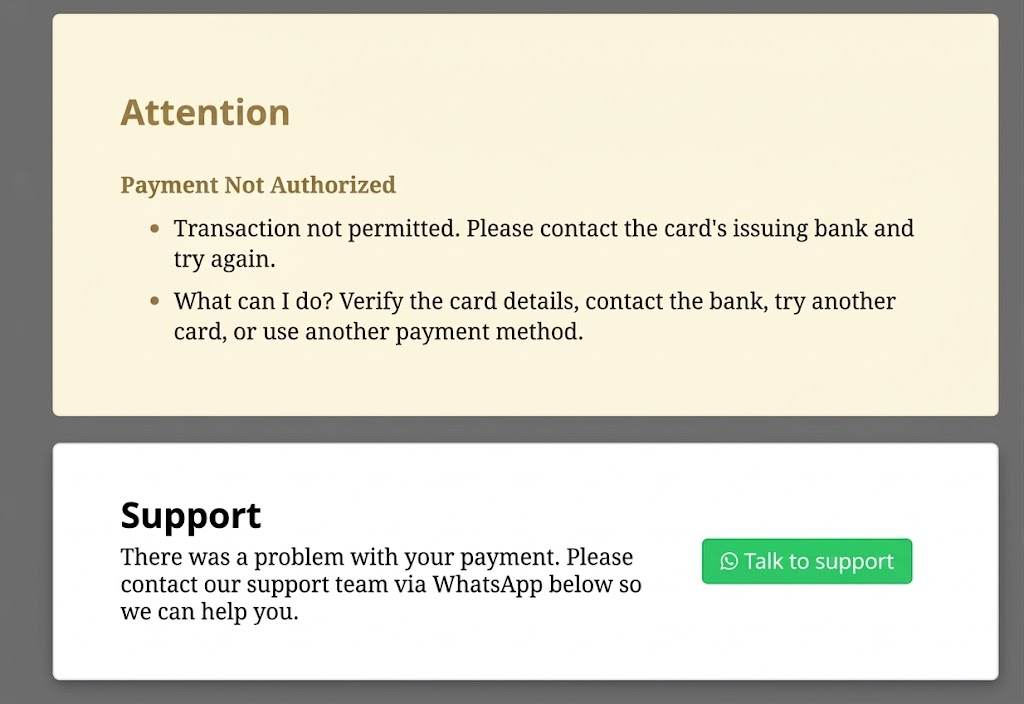
That way, if there’s any payment error, the attendee will see a button to contact you via WhatsApp and can resolve the issue quickly, without abandoning the purchase. Much better for your event’s finances, right?
Buttons to Access WhatsApp Groups
You can also add buttons that direct attendees straight to your event’s WhatsApp groups.
They’re shown at the best possible moment: right when someone registers and when they get their confirmation!
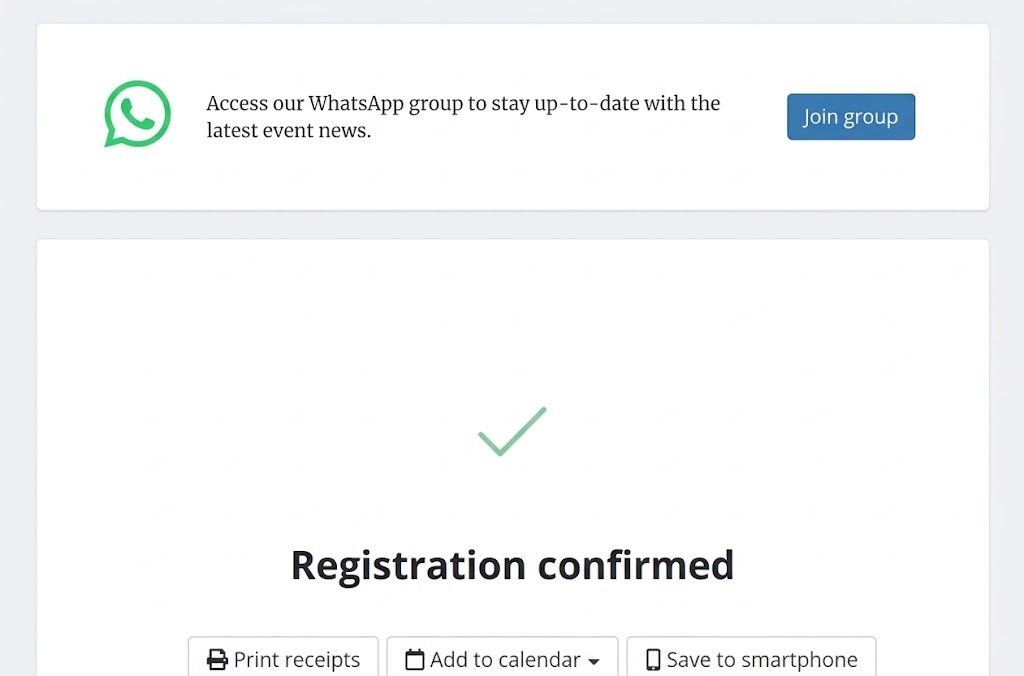
This way, you make sure only actual attendees are in your shared groups.
And doing this is quick and simple: just enable the feature for free from the Tools menu.
Want to see how it works? Create an event for free on Even3 and start using WhatsApp broadcast lists and groups to transform your attendees’ experience.